

Your computer suddenly feels slow, apps take longer to open, and fans get louder. When you check Task Manager, you may ask yourself: why is my CPU usage so high even when you are not doing anything heavy.
Quick Fix: CPU Usage Too High?
If your CPU usage suddenly spikes to 80–100%, don’t panic. In many cases, you can reduce high CPU usage with a few simple steps.
- Restart your computer.
- Close unnecessary apps using Task Manager.
- Disable unnecessary startup programs.
- Let Windows Update finish if it’s installing updates.
- Run a malware scan.
- Update Windows and your device drivers.
- Check your CPU temperature and clean dust if your PC is overheating.
If your CPU usage is still high after trying these steps, continue reading to identify the exact cause and the best solution.
Introduction
CPU usage refers to the percentage of your processor’s power that is currently being used to run programs, background tasks, and system processes. Every action on your computer, from opening a browser to running software, requires CPU resources.
In most cases, CPU usage between 5% and 30% during light tasks is common on many systems, although normal levels can vary depending on hardware, background processes, and operating conditions. However, usage can increase temporarily when gaming, editing videos, installing software, or running demanding applications.
When CPU usage stays unusually high for long periods, your computer may become slow, unresponsive, or noisy. You might notice lag, overheating, longer loading times, frequent freezes, or reduced overall performance.
High CPU usage can happen for many reasons. It may be caused by resource-heavy applications, too many startup programs, background processes, outdated drivers, malware infections, system updates, insufficient cooling, or even hardware-related issues.
Fixing high CPU usage depends on the exact cause. Some issues are software related, while others need system or hardware optimization. Understanding your processor and motherboard components can also help when diagnosing performance issues.
In this guide, you will learn what causes high CPU usage, how to identify the process using your CPU resources, practical ways to reduce CPU load, and proven tips to improve overall system performance and stability.
About the Author
Mian Niamat Ali is the founder of Techy Dialogue, a technology website focused on CPU performance, PC troubleshooting, and computer hardware.
His editorial work covers common PC performance problems, Windows troubleshooting methods, processor temperatures, and hardware optimization. This guide is designed to help readers identify the causes of high CPU usage and choose appropriate troubleshooting steps.
Read more in our CPU Guides for additional information about processor performance and PC hardware.
What Does High CPU Usage Mean?
High CPU usage means your processor is using a large portion of its available resources to run programs, background services, and system tasks. The CPU is often called the “brain” of the computer because it handles the instructions that keep your system running.
Every application you open uses some CPU power. This includes web browsers, games, antivirus software, and even background processes running without your knowledge.
A temporary increase in CPU usage is normal when performing demanding tasks. However, if CPU usage stays unusually high for a long time, your computer may become slow, unresponsive, or overheated.
Understanding CPU Usage Percentage
CPU usage is measured as a percentage from 0% to 100%. This percentage shows how much of your processor’s capacity is currently being used.
Lower usage means more free CPU power. Higher usage means heavier workload.
| CPU Usage | What It Usually Means |
| 0% – 10% | Computer is idle or performing very light tasks |
| 10% – 30% | Normal usage during web browsing, email, and office work |
| 30% – 70% | Moderate workload from multitasking or demanding applications |
| 70% – 100% | Heavy workload from gaming, video editing, rendering, or other resource-intensive tasks |
Short spikes in CPU usage are completely normal. Most modern processors are designed to handle sudden increases in workload efficiently.
Normal vs High CPU Usage
Not all high CPU usage is a problem. What is considered normal depends on the tasks you are performing.
Normal CPU Usage
CPU usage is generally considered normal when:
- The computer is idle and usage stays below 10%.
- Basic tasks such as web browsing and document editing use moderate resources.
- CPU usage increases temporarily while opening applications or running updates.
- Resource-intensive software causes short-term spikes in processor usage.
High CPU Usage
CPU usage may be considered high when:
- Usage remains above 80% for extended periods.
- The system feels slow during simple tasks.
- Programs take longer than usual to open or respond.
- Cooling fans run constantly at high speed.
- CPU usage remains high even when no demanding applications are running.
When High CPU Usage Becomes a Problem
High CPU usage becomes a concern when it starts affecting your computer’s performance, stability, or temperature.
Slow Performance
One of the first signs is a noticeable slowdown. Applications may take longer to load, and everyday tasks can feel sluggish.
System Freezing and Lag
When the processor is overloaded, the computer may struggle to keep up with requests. This can result in lag, stuttering, or temporary freezes.
Increased Heat and Fan Noise
A busy CPU generates more heat. As a result, cooling fans may spin faster and become louder to prevent overheating.
Reduced Battery Life
On laptops, sustained high CPU usage can drain the battery more quickly because the processor requires additional power.
Constantly High CPU Usage
If CPU usage stays near 100% even when you are not running demanding software, there may be an underlying issue such as a background process, outdated driver, malware infection, or system configuration problem.
Key Takeaway
High CPU usage is normal during heavy tasks. It becomes a problem only when it stays high during light usage or idle time. In that case, you should find the cause and fix it.
How to Check & Identify What Is Using Your CPU
Before trying to fix high CPU usage, you should first identify what is using your processor resources. Windows includes built-in tools that allow you to monitor CPU activity and find applications, services, or background processes that may be causing the problem.
The two most useful tools are Task Manager and Resource Monitor. Together, they can help you identify resource-heavy programs and troubleshoot unusual CPU usage.
Step-by-Step: Check CPU Usage in Windows Task Manager
Task Manager is the fastest way to see your current CPU usage and identify which programs are consuming processor resources.
How to Open Task Manager & Find CPU Percentage
Follow these steps:
- Press Ctrl + Shift + Esc on your keyboard to open Task Manager.
- If you are using Windows 10 and Task Manager opens in compact view, click More Details. On Windows 11, Task Manager opens in its full layout by default with a navigation menu on the left side.
- Select the Processes tab or icon from the menu.
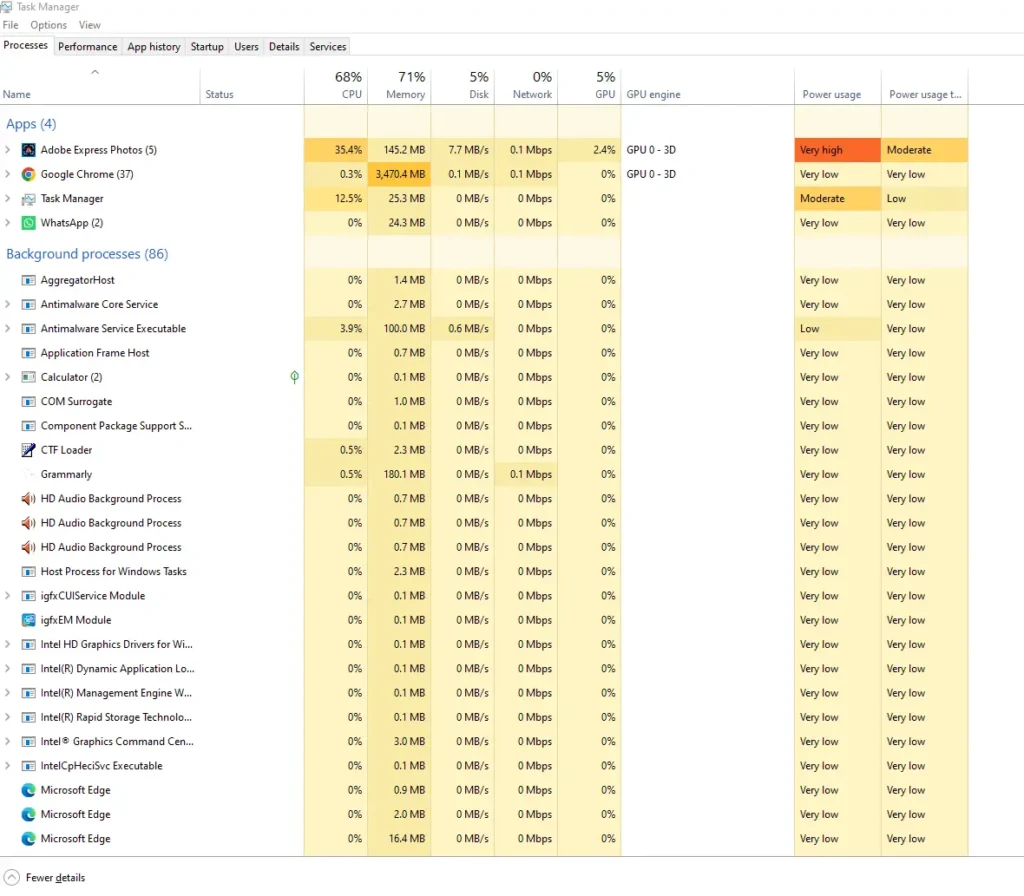
- Locate the CPU column to see how much processor power each application is using.
- Check the overall CPU usage percentage displayed within Task Manager.
This percentage shows how much of your processor’s available capacity is currently being used. A consistently high number may indicate that one or more processes are consuming excessive resources.
Identifying Resource-Hungry & Unusual Processes
In the Processes tab, click the CPU column to sort applications from highest to lowest CPU usage.
Look for programs that are consistently using a large percentage of processor resources.
Common examples include:
- Web browsers with many open tabs
- Video editing software
- Games and game launchers
- Antivirus scans
- File synchronization applications
- Windows update services
You should also pay attention to unfamiliar processes. In some cases, malware, unwanted software, or a faulty application can cause abnormal CPU usage.
Before ending any process, make sure you understand its purpose. Closing important Windows processes may cause system instability or force a restart.
How to Close a Buggy App
If you identify a non-system application, such as a frozen browser, game, or third-party program using excessive CPU resources, right-click the process and select End Task.
This will force the application to close immediately and may reduce CPU usage if the program is not responding correctly.
Checking Your CPU Usage History
Task Manager also allows you to view CPU activity over time.
To check CPU usage history:
- Open Task Manager.
- Select the Performance tab or icon from the left-side menu.
- Click CPU.
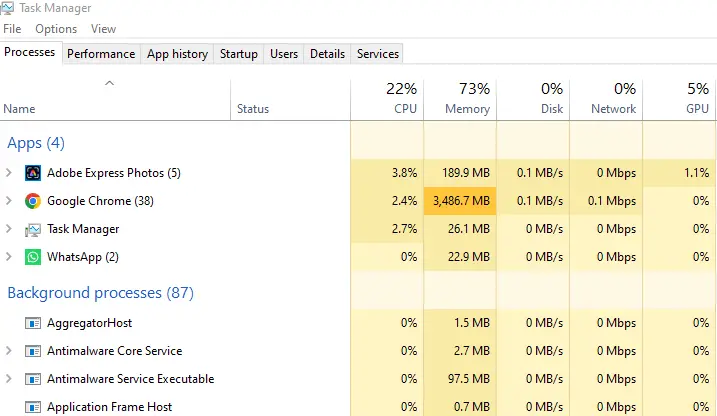
You will see a real-time graph showing processor activity, current CPU usage, clock speed, uptime, and other performance details.
This information helps determine whether high CPU usage is a temporary spike or a recurring issue.
Deep Diagnostics: Using Resource Monitor to Track Background Services
If Task Manager does not clearly show the source of the problem, Resource Monitor provides a more detailed view of system activity.
To open Resource Monitor:
- Press Windows + R.
- Type resmon and press Enter.
- Open the CPU tab.
Resource Monitor displays detailed information about:
- Running processes
- Windows services
- Background tasks
- CPU activity by application
- Related system components
This tool is especially useful when CPU usage remains high even though no obvious application appears responsible.
By reviewing active services and background processes, you can often identify hidden resource consumption that is not immediately visible in Task Manager.
Practical CPU Usage Troubleshooting
To find out why your CPU usage is high, open Task Manager by pressing Ctrl + Shift + Esc and select the Processes tab. Click the CPU column to see which applications or background processes are using the most processor resources.
Use these checks to narrow down the cause:
- Process check: Identify the process using the most CPU and note its usage.
- Idle check: Close unnecessary applications and check whether CPU usage decreases when your computer is idle.
- Temperature check: If overheating is suspected, monitor CPU temperatures and compare them with the manufacturer’s specifications for your processor.
- Repeat check: Restart your computer and check CPU usage again. If Windows updates are running, allow them to finish before checking whether usage returns to normal.
If CPU usage remains unusually high, investigate the process responsible before disabling services or uninstalling software. These checks can help you narrow down whether the issue is related to background activity, software, cooling, or another system problem. Results may vary depending on your CPU, Windows version, and running applications.
Real-World CPU Usage Check
I checked CPU usage in Windows Task Manager by sorting processes according to CPU consumption. This helped identify which applications were using the most processor resources. After closing unnecessary applications, I checked CPU usage again to see whether it decreased.
The results can vary depending on the processor, Windows version, and background tasks running on the system.
Quick Tip
Always identify the process causing high CPU usage before applying any fix. Understanding what is consuming processor resources helps you solve the actual problem instead of making unnecessary system changes.
Why Is My CPU Usage So High? 12 Common Causes & Instant Fixes
High CPU usage can happen for many reasons. Sometimes it is caused by normal system activity, while other times it may point to a software issue, malware infection, outdated drivers, or hardware limitations.
Below are the most common causes of high CPU usage and the quickest ways to fix them.
1. Too Many Programs Running in the Background & Startup Apps
Many applications continue running in the background even when you are not actively using them. Startup programs can also launch automatically when Windows starts, consuming CPU resources from the moment you sign in.
Common examples include cloud storage apps, messaging software, launchers, and update services.
The Fix
- Close applications you do not need.
- Disable unnecessary startup programs through Task Manager.
- Restart your computer to clear temporary background processes.
- Check for software conflicts if CPU usage remains high.
Reducing background activity often improves system performance immediately.
2. High CPU Usage Caused by Windows Updates
Windows updates sometimes use significant processor resources while downloading, installing, or configuring updates.
In Task Manager, update-related activity may appear as processes such as TiWorker.exe (Windows Modules Installer Worker) or Modern Setup Host. During major updates, these processes can temporarily increase CPU usage.
The Fix
- Allow pending updates to complete.
- Restart your computer after updates install.
- Check Windows Update for failed or stuck updates.
- Restart the Windows Update service if necessary.
In most cases, CPU usage returns to normal once the update process finishes.
3. Antivirus Software Scanning Files
Antivirus programs regularly scan files, applications, and system areas to detect threats. During a deep scan, CPU usage can increase noticeably.
This is especially common on older computers with limited hardware resources.
The Fix
- Schedule full scans during idle hours.
- Allow scans to complete without interruption.
- Temporarily pause a scan if you need maximum performance.
- Keep your antivirus software updated.
A short-term increase in CPU usage during security scans is generally normal.
4. Malware, Viruses, or Hidden Cryptominers
Malicious software can secretly use processor resources without your knowledge. Some threats run in the background, while cryptomining malware uses CPU power to generate cryptocurrency.
Signs may include constant high CPU usage, overheating, and unusual system slowdowns.
The Fix
- Run a full malware scan using Windows Security.
- Use a trusted malware removal tool such as Malwarebytes.
- Remove suspicious programs and browser extensions.
- Keep Windows and security software updated.
Regular security scans help prevent malware-related CPU problems.
5. Web Browser Using Excessive CPU (Chrome or Edge)
Modern browsers can consume a surprising amount of CPU power, especially when multiple tabs, extensions, and web applications are running simultaneously.
Too Many Open Tabs
Each open tab uses system resources. Streaming video, online meetings, browser games, and complex websites can increase CPU usage significantly.
The Fix
- Close tabs you no longer need.
- Enable Sleeping Tabs in supported browsers.
- Avoid keeping dozens of inactive tabs open.
Pro Tip: Press Shift + Esc while using Chrome or Microsoft Edge to open the browser’s built-in Task Manager. This tool shows exactly which tab, website, extension, or browser process is consuming CPU resources.
6. Faulty, Corrupted, or Outdated Drivers
Device drivers allow Windows to communicate with hardware components. Corrupted or outdated drivers can create excessive processor activity and system instability.
Graphics card drivers and chipset drivers are common causes.
The Fix
- Install the latest Windows updates.
- Update graphics, chipset, and network drivers.
- Reinstall drivers if problems started after an update.
- Remove drivers associated with unused hardware.
Keeping drivers current helps improve system stability and performance.
7. Insufficient RAM Causing CPU Overload
RAM stores data that active programs need immediate access to. When available memory becomes full, Windows begins using a portion of your storage drive as temporary memory through a feature called the Pagefile or Virtual Memory.
When RAM is insufficient, Windows may rely more heavily on virtual memory, increasing disk activity and slowing down applications. Low RAM does not automatically increase CPU usage. Check CPU and Memory usage in Task Manager before considering a RAM upgrade.
The Fix
- Close unused applications.
- Reduce the number of startup programs.
- Upgrade your RAM if possible.
- Verify that virtual memory settings are configured correctly.
Systems with limited RAM often experience noticeable improvements after a memory upgrade.
8. Hardware Overheating Issues & Thermal Throttling
Excessive heat can affect CPU performance and system stability.
When a processor approaches its thermal limit, typically around 90°C to 100°C depending on the model, it automatically reduces its operating speed to protect itself from damage. This protective behavior is known as thermal throttling.
The Fix
- Clean dust from fans and air vents.
- Improve airflow inside the computer case.
- Verify that all cooling fans are functioning properly.
- Replace old or dried thermal paste if necessary.
- Monitor CPU temperatures during heavy workloads.
Maintaining safe operating temperatures helps prevent throttling and ensures consistent performance.
9. Windows Search Indexing Glitches
Windows Search continuously indexes files to improve search speed. If the indexing service becomes stuck, CPU usage may increase unexpectedly.
In Task Manager, this activity is commonly associated with SearchIndexer.exe.
The Fix
- Rebuild the search index.
- Restart the Windows Search service.
- Allow indexing to finish if many new files were recently added.
Once indexing completes successfully, processor usage typically returns to normal.
10. Core Windows Services (Runtime Broker or Service Host)
Certain Windows services occasionally consume more CPU resources than expected. Common examples include Runtime Broker and Service Host (svchost.exe).
Because Service Host manages multiple Windows services, identifying the specific service causing the issue is important.
The Fix
- Expand the arrow next to Service Host (svchost.exe) in Task Manager.
- Identify the specific sub-service consuming resources.
- Check for issues with services such as SysMain, Windows Update, or diagnostic services.
- Adjust privacy settings if Runtime Broker usage remains unusually high.
- Install available Windows updates.
Finding the exact service responsible for high CPU usage makes troubleshooting much easier.
11. System Interrupts Using Too Much CPU
System Interrupts is a Windows process that helps hardware communicate with the operating system. High usage may indicate a driver problem or hardware issue.
The Fix
- Update device drivers.
- Disconnect unnecessary external devices.
- Check hardware components for faults.
- Review Windows Power Settings.
Persistent System Interrupts activity often requires hardware troubleshooting.
12. Software Bugs and Glitches
Sometimes a program simply develops a bug, becomes corrupted, or enters an endless loop that consumes processor resources.
This can happen after software updates, crashes, or installation problems.
The Fix
- Restart the affected application.
- Update the software to the latest version.
- Reinstall the program if problems continue.
- Contact the software developer if the issue persists.
Many CPU usage problems are resolved through software updates and clean reinstallations.
Quick Summary
Most high CPU usage problems are caused by background applications, Windows updates, browsers, malware, outdated drivers, insufficient RAM, or overheating. Identifying the process responsible for the CPU load is the fastest way to find the correct solution and restore normal system performance.
Why Is CPU Usage So High While Gaming?
High CPU usage during gaming is not always a problem. Modern games require the processor to handle tasks such as game logic, artificial intelligence (AI), physics calculations, player input, background loading, and communication with the graphics card.
As a result, CPU usage often increases while gaming, especially in open-world, simulation, strategy, and competitive multiplayer games.
However, if CPU usage remains near 100% and causes stuttering, frame drops, overheating, or poor performance, there may be an underlying issue that needs attention.
CPU Bottleneck (Weak Processor vs. Powerful Graphics Card)
A CPU bottleneck occurs when the processor cannot keep up with the graphics card. In this situation, the CPU reaches its performance limit before the GPU can fully utilize its available power.
This is common when a high-performance graphics card is paired with an older or less capable processor.
Many modern games can become CPU-heavy, especially large open-world, simulation, and competitive multiplayer titles such as Cyberpunk 2077, GTA V, Cities: Skylines 2, Microsoft Flight Simulator, Valorant, and Counter-Strike 2 (CS2).
Signs of a CPU bottleneck include:
- CPU usage close to 100%
- Low or inconsistent GPU usage
- Frame rate drops during busy scenes
- Stuttering and input delays
- Poor performance despite having a powerful graphics card
A possible sign of a CPU bottleneck is consistently high CPU usage alongside lower GPU utilization. However, this pattern alone does not confirm a bottleneck, because game settings, frame-rate limits, and other system factors can also affect GPU usage.
How to Reduce a CPU Bottleneck
- Lower CPU-intensive settings such as view distance and crowd density.
- Close background applications before gaming.
- Enable game optimization features when available.
- Upgrade to a faster processor if the bottleneck is severe.
- Ensure your motherboard BIOS and chipset drivers are up to date.
A balanced CPU and GPU combination usually provides the best gaming performance.
Game Optimization Issues & Heavy In-Game Settings
Not every game is optimized equally. Some games place a heavier workload on the processor because of large open worlds, advanced physics systems, high player counts, or complex AI calculations.
Games such as Cities: Skylines 2, Microsoft Flight Simulator, and large multiplayer matches in Battle Royale games are known for placing significant demand on the CPU.
Common CPU-intensive settings include:
- View distance
- Population density
- Physics quality
- Simulation settings
- Advanced AI features
- Object detail and crowd density
Lowering these settings can often reduce processor load without significantly affecting visual quality.
How to Reduce CPU Load in Games
- Lower CPU-intensive graphics settings.
- Install the latest game updates and patches.
- Update graphics drivers and chipset drivers.
- Limit unnecessary background activity.
- Monitor CPU and GPU usage while gaming.
If only one specific game causes high CPU usage, the issue is often related to game optimization rather than a hardware problem.
Background Applications & Recording/Streaming Software (OBS, Discord)
Many gamers run additional software while playing. Applications such as OBS Studio, Discord, web browsers, game launchers, RGB control software, and screen recording tools all consume processor resources.
Streaming gameplay can increase CPU usage even further because the system must render the game while simultaneously encoding video for live broadcasting.
Common background applications that affect gaming performance include:
- OBS Studio
- Discord
- Google Chrome
- Microsoft Edge
- Steam Overlay
- Xbox Game Bar
- RGB control software
- Hardware monitoring utilities
How to Reduce CPU Usage While Gaming
- Close unnecessary applications before launching a game.
- Disable unused overlays and startup programs.
- Reduce browser tabs running in the background.
- Lower recording quality if CPU usage remains high.
If you stream using OBS Studio, consider switching from x264 encoding to a hardware encoder such as NVIDIA NVENC, AMD AMF, or Intel Quick Sync.
These technologies use dedicated hardware on the graphics card or processor to handle video encoding, reducing CPU load and improving gaming performance.
Discord’s CPU usage depends on your activity and system configuration. Try disabling the In-Game Overlay or changing Hardware Acceleration settings one at a time, then check whether CPU usage or gaming performance improves.
These small adjustments can free up valuable processor resources during gaming sessions.
Quick Tip
High CPU usage while gaming is not necessarily a problem. If you experience stuttering or frame drops, monitor CPU and GPU utilization, temperatures, and frame rates. High CPU usage combined with low GPU utilization may indicate a CPU bottleneck, but background applications and other issues can also affect performance.
Why Does My CPU Usage Jump to 100% Suddenly?
A sudden spike to 100% CPU usage can look alarming, but it is not always a sign of a serious problem. Modern processors are designed to use their full performance when demanding tasks require it.
In many cases, the CPU briefly reaches 100% while opening large applications, processing files, installing software, or performing system tasks in the background.
The key difference is whether the spike is temporary or remains stuck at 100% for an extended period. Short spikes are usually normal. Constant high CPU usage often requires further investigation.
Heavy Software Workloads (Video Rendering, Compiling, File Unzipping)
Some tasks are designed to use as much processor power as possible to complete work faster. During these workloads, CPU usage can temporarily reach 100%.
Common examples include:
- Video rendering and exporting
- Software compiling and code building
- File compression and extraction
- Large software installations
- Data processing workloads
- Antivirus deep scans
- 3D rendering projects
Modern productivity software is often highly multi-threaded. Applications such as Adobe Premiere Pro, Blender, and HandBrake are designed to use all available CPU cores and threads whenever possible. This allows the workload to finish faster and improves overall efficiency.
As a result, seeing CPU usage reach 100% during these tasks is usually normal behavior.
How to Tell if the Spike Is Normal
A CPU spike is often normal when:
- It occurs while performing a demanding task.
- CPU usage drops after the task finishes.
- The system remains stable and responsive.
- Temperatures stay within safe operating limits.
If CPU usage returns to normal after the workload is completed, there is usually nothing to worry about.
Corrupted Software Loops & Hidden Cryptomining Malware
Not every CPU spike is caused by legitimate software. A corrupted application, software bug, or malware infection can also force the processor to remain under constant load.
Some programs may become stuck in an endless processing loop, repeatedly performing the same operation without completing it. This can cause CPU usage to remain unusually high even when the computer appears idle.
Cryptomining malware is another possible cause. These threats secretly use processor resources to generate cryptocurrency in the background, often leading to constant CPU activity, increased temperatures, and reduced system responsiveness.
How to Identify the Cause
Start by opening Task Manager and locating the CPU column.
Click the CPU column header to sort processes from highest to lowest CPU usage. This places the process consuming the most processor resources at the top of the list, making it easier to identify the source of the problem.
If a specific application is responsible for the spike, try updating, restarting, or reinstalling that software.
Important: Some advanced malware may attempt to reduce or hide its activity when monitoring tools are opened. If you continue to experience unexplained CPU spikes, run a full system scan using Windows Security or a trusted anti-malware solution.
When to Be Concerned
Occasional CPU spikes are a normal part of how computers operate. However, if CPU usage remains at or near 100% for long periods without an obvious reason, it may indicate a software issue, malware infection, driver problem, or hardware-related fault that requires troubleshooting.
Quick Tip
A brief jump to 100% CPU usage is usually harmless. The real concern is sustained high processor usage when no demanding task is running. Checking which process is using CPU resources is the fastest way to determine whether the behavior is normal or a sign of a problem.
Can High CPU Usage Damage Your Processor?
Many people worry when they see CPU usage reach 90% or even 100%. However, high CPU usage alone does not usually damage a processor.
Modern CPUs are designed to operate at full capacity when needed. Tasks such as gaming, video editing, 3D rendering, software compiling, and data processing can legitimately push CPU usage to 100%.
In most cases, the real concern is not CPU usage itself but the heat generated while the processor is under heavy load. Understanding the difference between CPU usage and CPU temperature can help you determine whether your system is operating normally or needs attention.
Does 100% CPU Usage Harm the Processor Long-Term?
No. A modern processor is designed to handle 100% usage when required.
Manufacturers such as Intel and AMD build processors to operate under heavy workloads for extended periods. Professional workstations, servers, rendering systems, and gaming PCs often run at high CPU utilization without causing damage.
For example, tasks such as:
- Video rendering
- Software compiling
- Scientific calculations
- Virtual machine workloads
- 3D animation rendering
may keep CPU usage near 100% for hours.
This is normal behavior as long as the processor remains within safe operating temperatures.
Modern CPUs also include built-in protection features that help prevent damage. If temperatures become too high, the processor can automatically reduce its clock speed through a process called thermal throttling. In extreme situations, the system may shut down automatically to protect the hardware.
What Matters More Than CPU Usage?
The most important factor is temperature, not the percentage shown in Task Manager.
A processor running at 100% usage and safe temperatures is generally healthier than a processor running at moderate usage while overheating.
Heat vs. CPU Usage: When High Temperatures Become Dangerous
High CPU usage naturally produces more heat because the processor is performing more work.
If the cooling system cannot remove that heat efficiently, temperatures may rise to unsafe levels.
Common causes of overheating include:
- Dust buildup inside the computer
- Poor airflow
- Failing cooling fans
- Improperly installed CPU coolers
- Old or dried thermal paste
- High room temperatures
Most modern processors begin protecting themselves when temperatures approach their thermal limits, which are often around 90°C to 100°C depending on the CPU model.
When this happens, thermal throttling reduces processor speed to lower heat output. While this helps prevent damage, it can also reduce performance and cause slowdowns during demanding tasks.
Warning Signs of Excessive CPU Heat
Watch for symptoms such as:
- Loud cooling fans
- Frequent thermal throttling
- Sudden frame rate drops while gaming
- Unexpected system shutdowns
- Random freezes or crashes
- Consistently high CPU temperatures
If these symptoms appear regularly, your cooling system may need maintenance or upgrades.
Safe CPU Temperature Ranges (Idle vs. Full Load)
CPU temperatures vary depending on the processor model, cooling solution, ambient room temperature, and workload.
For example, understanding normal processor temperatures can help you identify whether your CPU is overheating. Learn more in our guide: Is 40°C Good For CPU?
The following temperature ranges are general guidelines, not universal limits. Safe operating temperatures vary by CPU model, workload, and manufacturer specifications. Check your processor’s official thermal limits before deciding whether a temperature is too high.
| CPU condition | General guidance |
|---|---|
| Idle or light usage | 30°C–50°C |
| Web browsing and office work | 40°C–60°C |
| Gaming | 60°C–85°C |
| Heavy rendering | 70°C–90°C |
| High temperature requiring model-specific checking | Above 90°C |
These values are general guidelines. Some processors are designed to operate safely at higher temperatures than others.
How to Check CPU Temperature
You can monitor CPU temperature using trusted hardware monitoring tools.
Popular options include:
These tools provide real-time temperature readings, clock speeds, voltage information, and CPU utilization data.
MSI Afterburner is particularly useful for gamers because it can display CPU temperatures and system statistics through an in-game overlay while you play.
Regular temperature monitoring can help identify cooling issues before they affect performance or system stability.
Pro Tip About Modern CPUs
Some modern high-end processors are designed to operate at higher temperatures than older CPUs.
For example, certain recent enthusiast-grade processors may intentionally boost clock speeds until they approach their designed thermal target range. In these cases, temperatures between approximately 85°C and 95°C under heavy workloads may be expected behavior.
However, acceptable temperatures vary by CPU model, cooling solution, and manufacturer specifications. Always compare your temperatures against the official guidance for your specific processor.
How to Prevent High CPU Usage in the Future (Maintenance Checklist)
Most high CPU usage problems can be prevented with regular system maintenance. A few simple habits can help keep your computer running smoothly, improve performance, and reduce the chances of unexpected CPU spikes.
Use the following checklist to maintain a healthy and efficient system.
Remove Unnecessary Startup Programs Periodically
Many applications are configured to launch automatically when Windows starts. Over time, these startup programs can increase boot times, consume system resources, and contribute to higher CPU usage in the background.
The more programs that start automatically, the more work your processor must perform every time you turn on your computer.
How to Manage Startup Programs
- Open Task Manager (Press Ctrl + Shift + Esc).
- Select the Startup Apps section.
- Review the list of programs that launch during startup.
- Disable applications you do not need running automatically.
Common examples include:
- Game launchers
- Messaging apps
- Cloud storage software
- RGB control utilities
- Media applications
Disabling unnecessary startup programs can reduce background CPU activity and improve overall system responsiveness.
Best Practice
Review your startup list every few months. New software often adds itself to startup without clearly notifying the user.
Maintain Good Airflow & Clean Hardware Regularly
Heat is one of the most common causes of reduced CPU performance. Dust buildup can block airflow, increase temperatures, and force the processor to work harder under load.
A clean cooling system helps your CPU maintain stable clock speeds and avoid thermal throttling.
Hardware Maintenance Checklist
- Clean dust from air vents and fans.
- Remove dust from CPU coolers and heatsinks.
- Keep airflow paths clear inside the computer case.
- Ensure all cooling fans are functioning properly.
- Avoid placing laptops on soft surfaces that block ventilation.
- Replace old or dried thermal paste if CPU temperatures begin increasing unexpectedly or cooling performance declines.
Most quality thermal paste can remain effective for several years, but older systems may benefit from replacement as part of long-term maintenance.
Why Cooling Matters
When temperatures remain under control, the processor can operate efficiently without reducing performance to protect itself from overheating.
Monitor CPU Usage and System Health Periodically
Many CPU problems start gradually. Regular monitoring helps identify unusual behavior before it becomes a serious issue.
Checking system health occasionally can help you spot:
- Unusual CPU spikes
- Background processes consuming resources
- Overheating issues
- Failing hardware components
- Software conflicts
- Malware-related activity
Useful Monitoring Tools
You can monitor CPU performance and temperatures using trusted tools such as:
- Task Manager
- Resource Monitor
- HWMonitor
- Core Temp
- HWiNFO
- MSI Afterburner
These tools provide valuable information about processor usage, temperatures, clock speeds, and overall system health.
Create a Simple Monthly Checkup Routine
Once a month:
- Check CPU usage in Task Manager.
- Review startup applications.
- Install Windows and driver updates.
- Run a malware scan.
- Monitor CPU temperatures during normal use.
- Remove software you no longer use.
This simple maintenance routine can help prevent many common causes of high CPU usage before they affect performance.
Quick Maintenance Checklist
For long-term CPU health:
✔ Remove unnecessary startup programs
✔ Keep Windows and drivers updated
✔ Scan regularly for malware
✔ Clean dust from fans and cooling components
✔ Monitor CPU temperatures
✔ Check CPU usage periodically
✔ Maintain good airflow around your computer
✔ Uninstall unused software
Key Takeaway
Preventing high CPU usage is often easier than fixing it. Regular maintenance, proper cooling, startup management, and occasional system monitoring can significantly reduce processor-related problems. By following a simple maintenance routine, you can keep your computer running faster, cooler, and more efficiently for years to come.
Signs That You May Need a CPU Upgrade
Not every high CPU usage problem can be solved with troubleshooting. Sometimes the processor itself becomes the limiting factor.
As software, operating systems, and games become more demanding, older CPUs can struggle to keep up with modern workloads. If you have already tried common fixes and your system still feels slow, it may be time to consider a CPU upgrade.
The following signs can help you determine whether your processor is becoming a performance bottleneck.
Frequent 100% CPU Usage on Fresh Windows Installations
One of the clearest signs of an aging processor is consistently high CPU usage even after performing a clean Windows installation.
A fresh installation removes most software-related problems, background clutter, and unnecessary startup programs. If your CPU still reaches 90% to 100% usage during everyday tasks, the processor may no longer provide enough performance for your needs.
Common symptoms include:
- Slow web browsing with multiple tabs open
- Delays when opening applications
- High CPU usage during basic office work
- Frequent system lag despite a clean operating system
- Performance issues immediately after a fresh installation
Why This Matters
A clean Windows installation eliminates many common software causes of high CPU usage. If performance problems remain afterward, the hardware itself may be the primary limitation.
Modern Software Overwhelms Your Processor Architecture
Software has evolved significantly over the years. Modern applications are designed to take advantage of multiple CPU cores, additional threads, larger caches, and newer processor technologies.
Older processors may lack these capabilities, making it difficult to keep pace with current workloads.
Examples include:
- Modern web browsers running many tabs
- Video editing applications
- Streaming and content creation software
- Virtual machines
- AI-powered applications
- Professional productivity tools
Even if an older CPU still functions correctly, its architecture may no longer be optimized for today’s software requirements.
Signs Your CPU Architecture Is Falling Behind
- Applications take longer to launch than expected.
- Software updates noticeably reduce performance.
- Multitasking becomes increasingly difficult.
- CPU usage remains high during routine workloads.
- New applications recommend hardware beyond your current processor.
If modern software consistently pushes your CPU to its limits, upgrading to a newer architecture can provide a significant performance improvement.
Severe Gaming Performance Issues & Slow Multitasking
Gaming and multitasking often reveal processor limitations more quickly than basic computer use.
A CPU that struggles with modern games may cause:
- Frequent frame rate drops
- Stuttering during gameplay
- Input lag
- Long loading times
- Poor performance in large multiplayer matches
You may also notice that background tasks become difficult while gaming.
For example:
- Watching a stream while gaming causes lag.
- Voice chat applications affect performance.
- Recording gameplay creates stuttering.
- Running multiple applications slows the entire system.
How to Identify a CPU Bottleneck
Monitor both CPU and GPU usage while gaming.
A processor may be limiting performance if:
- CPU usage stays near 90% to 100%.
- GPU usage remains unusually low.
- Lowering graphics settings does not improve frame rates.
- Stuttering occurs during CPU-intensive scenes.
Pro Tip: If you reduce your game resolution from 1080p to 720p and FPS remains almost unchanged while CPU usage stays near 100%, the processor may be limiting performance. Lowering resolution primarily reduces GPU workload. If performance does not improve, the CPU may be the bottleneck.
In many GPU-bound gaming workloads, graphics card usage is often close to full utilization. When CPU usage is maxed out but GPU usage remains much lower, the processor may be preventing the graphics card from reaching its full performance potential.
Before Upgrading
Before upgrading your processor, check whether your current CPU performance is actually limiting your system. Sometimes CPU optimization techniques can improve efficiency without requiring new hardware.
Before purchasing a new CPU, make sure the problem is not caused by:
- Malware or unwanted software
- Excessive background applications
- Outdated drivers
- Thermal throttling
- Insufficient RAM
- Storage performance issues
Addressing these factors first can prevent unnecessary hardware upgrades.
Motherboard Compatibility Matters
Before choosing a new processor, verify that your motherboard supports the upgrade. The motherboard’s power delivery system also affects processor stability, especially when using high-performance CPUs. Learn more about VRM technology in our motherboard guide.
Check:
- CPU socket compatibility
- Motherboard chipset support
- BIOS update requirements
- Memory compatibility (DDR4 or DDR5)
In some cases, upgrading to a newer processor may also require a new motherboard and different memory. Checking compatibility beforehand can help avoid unexpected costs and installation problems.
Key Takeaway
If your computer is slow even in normal use and CPU usage stays high most of the time, your processor may need an upgrade for better speed and stability.
Frequently Asked Questions (FAQs)
Why is my CPU usage suddenly so high?
It usually spikes due to background tasks like updates, antivirus scans, or heavy applications starting.
Why is my CPU usage so high even when idle?
Background services, startup programs, or malware can keep CPU active even when the system is idle.
Is 100% CPU usage bad?
No, it is normal during heavy tasks, but it is a concern if it stays high when the system is idle.
How do I lower CPU usage quickly?
Close unused apps, restart your PC, and end high CPU processes in Task Manager.
Can malware cause high CPU usage?
Yes, malware or cryptomining software can secretly use CPU resources in the background.
Why is Chrome using so much CPU?
Chrome uses high CPU due to multiple tabs, extensions, and heavy websites running in separate processes.
Does adding more RAM reduce CPU usage?
Not necessarily. More RAM can improve multitasking when memory is limited, but it does not directly reduce CPU usage. Check CPU and Memory usage in Task Manager before upgrading.
Why is my CPU at 100% while gaming?
It is usually caused by a CPU bottleneck, background apps, or poorly optimized games.
Can overheating increase CPU usage?
Overheating does not directly increase CPU usage. Instead, thermal throttling can reduce CPU speed and cause performance drops. Check CPU temperature and Task Manager to identify the cause.
How much CPU usage is normal?
Normal CPU usage depends on the workload. Light tasks may use around 0–30%, while demanding applications like games and rendering software can normally use much higher percentages.
Why is my CPU usage high after startup?
CPU usage is often high after startup because Windows loads background services, startup apps, updates, and security scans. If it stays high, check Task Manager to find the cause.
Why is CPU usage high but no programs are open?
High CPU usage without open programs can happen due to background services, Windows updates, indexing, malware, or startup applications running in the background.
Does high CPU usage slow down a PC?
Yes, continuous high CPU usage can slow down a PC by reducing available processor resources for normal tasks and causing lag, overheating, or slow performance.
Final Thoughts: Why Is My CPU Usage So High?
High CPU usage is not always a problem. Modern processors are designed to handle demanding tasks such as gaming, rendering, and multitasking.
However, if CPU usage remains high during simple tasks or when your computer is idle, the first step is to identify the process causing the load through Task Manager.
Most issues can be fixed by managing background applications, updating drivers, removing unnecessary startup programs, checking for malware, and maintaining proper cooling.
Finding the actual cause is always better than applying random fixes. With regular maintenance and monitoring, you can keep your PC running faster, cooler, and more reliably.
If you want to understand more about processor performance, explore our CPU guides for additional hardware and optimization tips.