
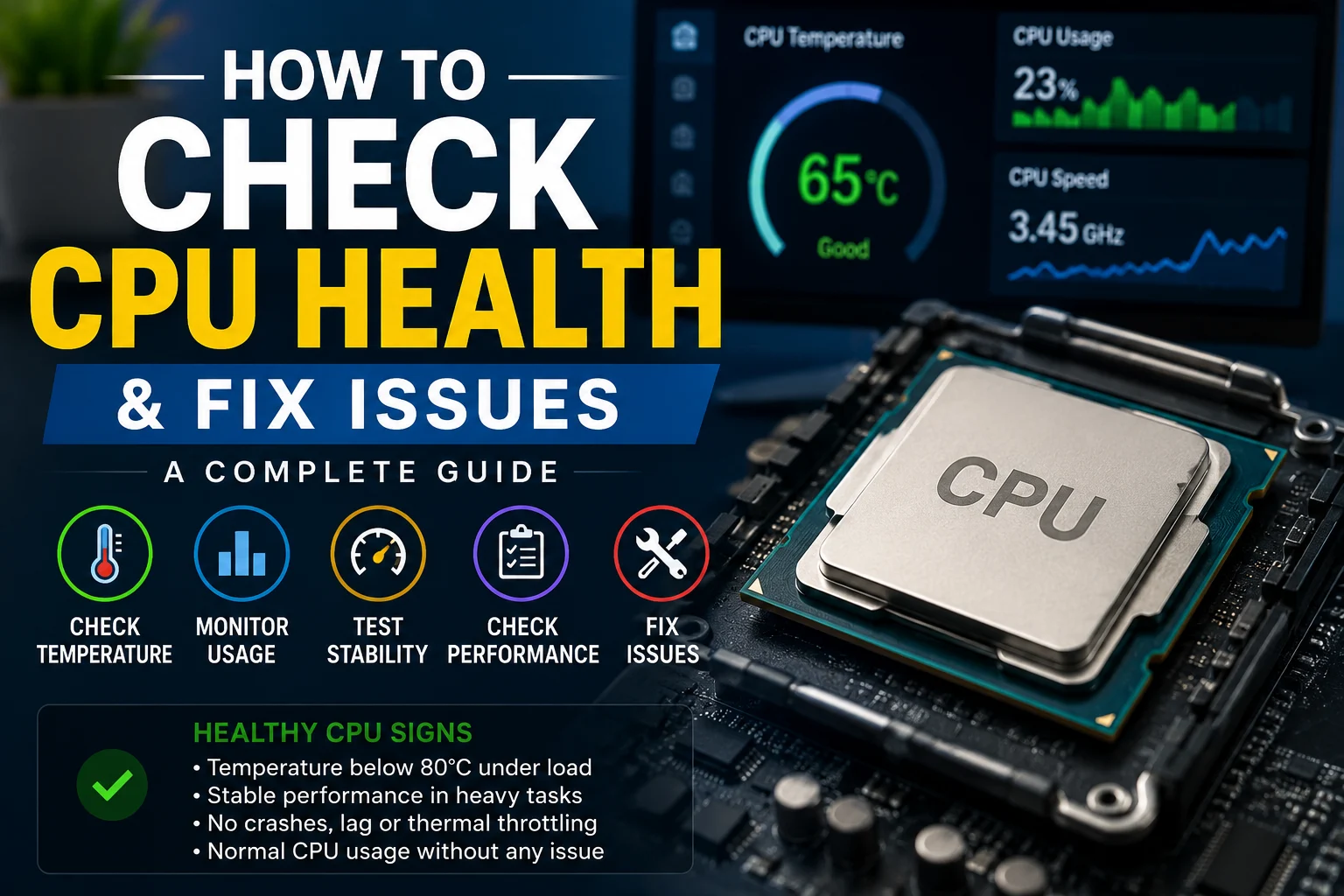
Your computer’s CPU is the brain of your system, and if it starts to struggle, your entire PC performance drops. Slow speed, overheating, random crashes, and lag are all common signs of poor CPU health. The good news is that you don’t need to be a tech expert to check your CPU’s condition.
In this guide, you will learn simple and effective methods to check CPU health, monitor temperature, test performance, and fix common issues. Whether you’re a beginner or an advanced user, this step-by-step guide will help you keep your CPU running smoothly and extend its lifespan.
Quick Answer: How to Check CPU Health
You can quickly check your CPU health by reviewing the following:
- CPU temperature: Stays within safe operating temperatures under normal and heavy workloads.
- CPU usage: Returns to normal after tasks finish and isn’t constantly stuck at 100% without reason.
- Performance: Remains consistent during demanding tasks without unexpected slowdowns.
- System stability: No crashes, freezing, overheating, or thermal throttling.
Use tools like HWiNFO, HWMonitor, or Core Temp to monitor your CPU. If your processor meets the checklist above, it is generally in good health.
What is CPU Health?
CPU health refers to the overall condition and efficiency of a computer’s processor. It is not only about temperature. A CPU may show normal temperatures but still experience underlying performance or stability issues.
It also involves stability, meaning the CPU can handle tasks like gaming, multitasking, and rendering without freezing, errors, or unexpected restarts.
Another important factor is thermal behavior. A healthy CPU maintains safe operating temperatures and avoids frequent overheating or thermal throttling that can reduce performance.
CPU health is also linked to longevity, which describes how long the processor can maintain consistent performance over time. Proper cooling and maintenance significantly extend its lifespan.
In simple terms, CPU health is a combination of performance, stability, temperature management, and long-term durability of the processor.
Also read: What is a Motherboard in a Computer? A Complete Guide 2025!
Signs Your CPU Might Be Unhealthy
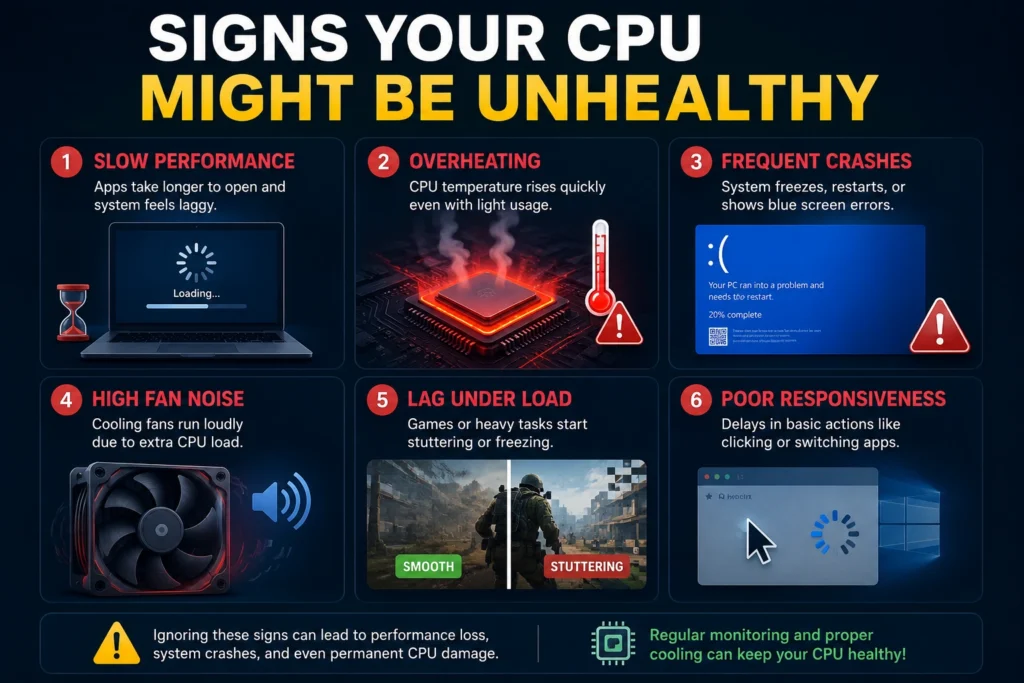
In my experience, overheating combined with sudden lag is often the earliest sign of CPU health issues, even before crashes start happening.
Here are the most common signs that your CPU may not be working properly:
- Slow performance: Apps take longer to open and system feels laggy
- Overheating: CPU temperature rises quickly even with light usage
- Frequent crashes: System freezes, restarts, or shows blue screen errors
- High fan noise: Cooling fans run loudly due to extra CPU load
- Lag under load: Games or heavy tasks start stuttering or freezing
- Poor responsiveness: Delays in basic actions like clicking or switching apps
In simple terms, these signs show that your CPU is struggling in performance, temperature control, or stability.
Ideal CPU Temperature & Usage Ranges
🌡️ CPU Temperature Ranges
| Condition | Temperature |
| Idle | 30°C – 50°C |
| Normal Usage | 50°C – 75°C |
| Heavy Load | 75°C – 85°C |
| Danger Zone | 90°C+ |
CPU Usage Ranges
| Condition | CPU Usage |
| Idle | 1% – 10% |
| Light Usage | 10% – 40% |
| Moderate Usage | 40% – 70% |
| Heavy Usage | 70% – 100% |
In my testing, CPUs that consistently stay above 85°C under load tend to throttle performance and degrade faster over time.
A healthy CPU stays within safe temperature and usage ranges. If it frequently enters the danger zone, it may need better cooling or optimization.
Method #1: Check CPU Temperature
CPU temperature is one of the most important indicators of CPU health. A normal CPU should stay within a safe temperature range during daily use.
You can check it using tools like HWMonitor, Core Temp, or BIOS. These tools show real-time temperature readings.
If your CPU heat level is too high even during light tasks, it may indicate poor cooling or a health issue.
While using HWiNFO during testing, I noticed that CPU temperature can spike quickly even during light tasks if airflow is poor. Monitoring temperature in real time helped identify hidden overheating issues.
Method #2: Monitor CPU Usage
CPU usage shows how much your processor is working at any moment.
You can check it using Task Manager (Windows) or Activity Monitor (Mac).
If CPU usage stays very high (80 – 100%) even when you are not running heavy apps, it may indicate background issues or system stress.
Method #3: Run CPU Stress Test
A CPU stress test checks how your processor performs under heavy load.
Tools like Cinebench, Prime95, or AIDA64 are commonly used.
During the test, your CPU is pushed to its limit. If your system crashes, freezes, or overheats, it may mean your CPU is unstable or cooling is weak.
During stress testing with tools like Cinebench, I observed that unstable systems often crash or throttle within minutes, while a healthy CPU maintains stable performance under full load.
Method #4: Check CPU Performance
CPU performance shows how fast and efficiently your processor handles tasks.
You can test performance using benchmarking tools like Geekbench or Cinebench.
If your CPU scores are lower than expected for your model, it may indicate performance issues, thermal throttling, or aging hardware.
How to Check CPU Health on Windows
Windows provides built-in tools that make it easy to check CPU health without installing anything extra.
1. Use Task Manager
Press Ctrl + Shift + Esc to open the Task Manager.
Go to the Performance tab and click CPU.
Here you can see:
- CPU usage in real time
- Current speed
- Number of active processes
If CPU usage stays very high without heavy work, it may indicate a problem.
2. Check CPU Temperature (Using Tools)
Windows does not show temperature by default, so you need tools like:
- HWMonitor
- Core Temp
- HWiNFO
These tools show real-time CPU heat levels and help detect overheating.
3. Use Resource Monitor
Open Task Manager → Performance → “Open Resource Monitor”
It shows:
- Which apps are using CPU
- System load details
This helps identify hidden background processes affecting CPU health.
How to Check CPU Health on Mac
Mac also provides built-in tools to monitor CPU performance and stability.
1. Use Activity Monitor
Go to Applications → Utilities → Activity Monitor
Open the CPU tab to see:
- CPU usage per app
- System load
- Background processes
If CPU usage is constantly high, your system may be under stress.
2. Check System Performance
You can also observe:
- Slow app response
- System lag
- Overheating during basic tasks
These are indirect signs of CPU health issues.
3. Use Third-Party Apps (Optional)
For deeper monitoring, Mac users can use tools like:
- iStat Menus
- Intel Power Gadget (for older Intel Macs)
These tools show temperature, load, and performance in detail.
Best Tools to Check CPU Health
To check CPU health properly, you need reliable monitoring tools. These tools help you track temperature, usage, performance, and system stability in real time.
| Tool | Best For | Difficulty |
| HWiNFO | Deep system analysis | Advanced |
| HWMonitor | Overall monitoring | Easy |
| Core Temp | Quick temperature check | Beginner |
| MSI Afterburner | Gaming monitoring | Medium |
| Speccy | System overview | Easy |
1. HWMonitor
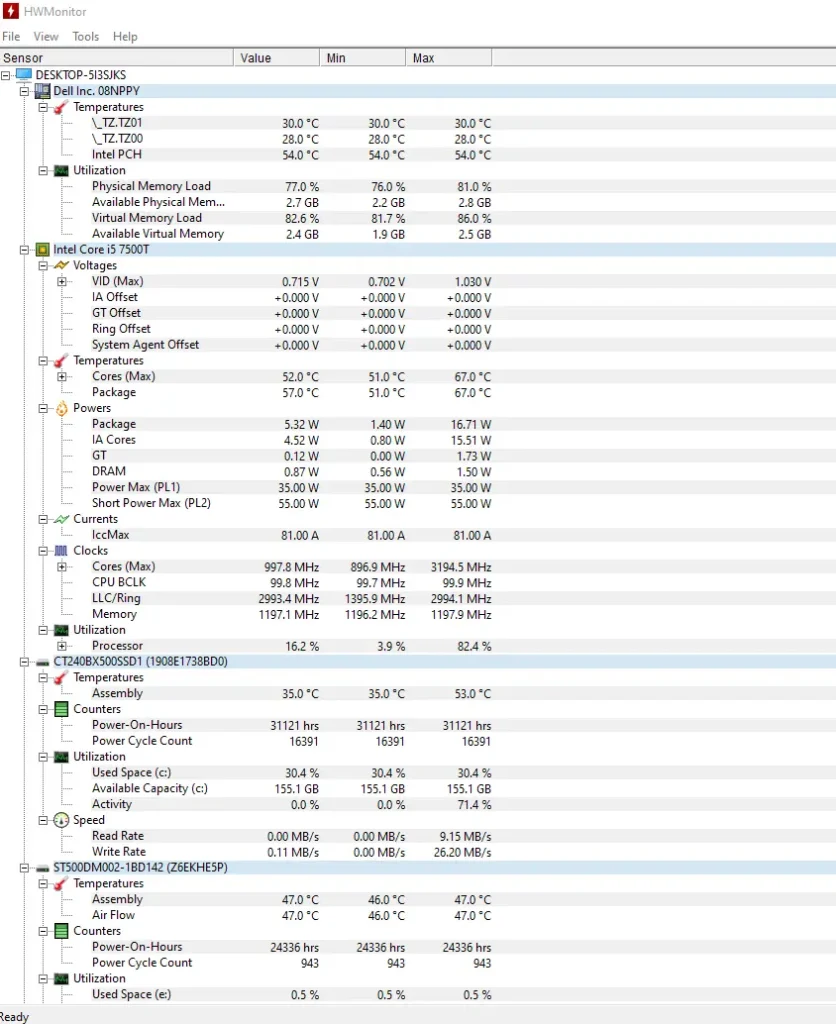
HWMonitor is a popular tool that shows CPU temperature, voltage, fan speed, and power usage. It is simple and useful for quick hardware checks. It also records minimum and maximum temperature values, which helps in spotting overheating issues.
How to use HWMonitor?
- Download HWMonitor from the official website
- Install and open the tool
- Go to the “Temperatures” section
- Check CPU temperature in real time
- Note minimum and maximum values for health check
2. HWiNFO
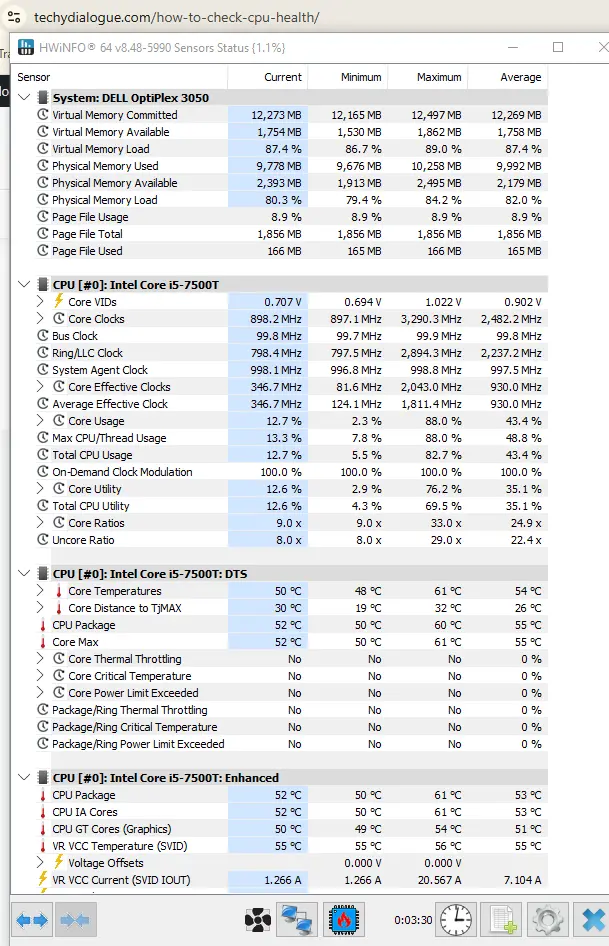
HWiNFO is one of the most advanced and accurate CPU monitoring tools. It provides detailed sensor data, including per-core temperature, CPU load, clock speed, and system health. It is widely used for deep system analysis and stress testing.
How to use HWiNFO?
- Install and launch HWiNFO
- Select “Sensors only” mode
- Scroll to CPU section
- Monitor temperature, load, and clock speed in real time
3. Core Temp
Core Temp is a lightweight tool designed specifically for CPU temperature monitoring. It shows real-time temperature for each CPU core. It is easy to use and perfect for beginners who only want basic temperature tracking.
How to use Core Temp?
- Install Core Temp
- Open the application
- View CPU core temperatures on the main screen
- Check each core for overheating signs
4. MSI Afterburner
MSI Afterburner is mainly used for gaming performance monitoring. It shows CPU usage, temperature, and FPS in real time while gaming. It is useful for checking CPU health under heavy load conditions.
How to use MSI Afterburner?
- Install MSI Afterburner
- Open settings and enable hardware monitoring
- Launch a game or heavy task
- Watch CPU usage and temperature overlay in real time
5. Speccy
Speccy gives a full system overview including CPU temperature and hardware details.
How to use Speccy:
- Install Speccy
- Open the software
- Go to CPU section
- Check temperature and system details
The best CPU health tools help you monitor temperature, performance, and system stability. For deep analysis, HWiNFO is the best choice. For simple monitoring, Core Temp or HWMonitor works well.
How to Improve CPU Health (Step-by-Step Guide for Better Performance)
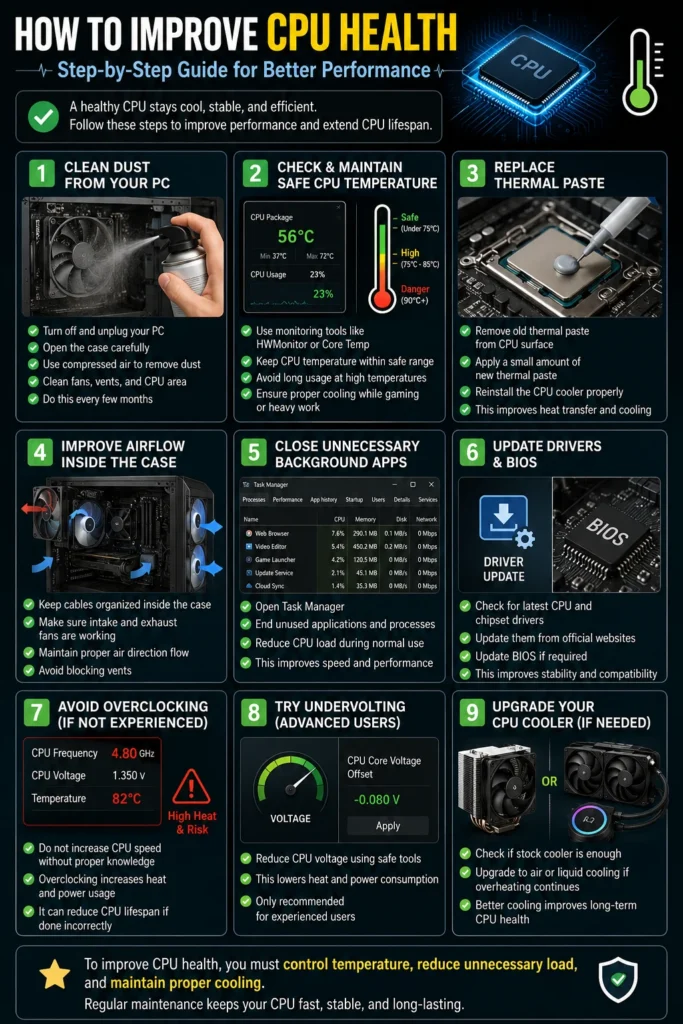
In real-world usage, most CPU health issues I have seen are caused by overheating and poor airflow rather than hardware failure. The good news is that these problems can usually be fixed with simple maintenance steps.
Improving CPU health means keeping your processor cool, stable, and efficient. These steps help you maintain better performance and extend CPU lifespan.
Step 1: Clean Dust from Your PC
- Turn off and unplug your PC
- Open the case carefully
- Use compressed air to remove dust
- Clean fans, vents, and CPU area
- Do this every few months
Step 2: Check & Maintain Safe CPU Temperature
- Use monitoring tools like HWMonitor or Core Temp
- Keep CPU temperature within safe range
- Avoid long usage at high temperatures
- Ensure proper cooling while gaming or heavy work
Step 3: Replace Thermal Paste
- Remove old thermal paste from CPU surface
- Apply a small amount of new thermal paste
- Reinstall the CPU cooler properly
- This improves heat transfer and cooling
Step 4: Improve Airflow Inside the Case
- Keep cables organized inside the case
- Make sure intake and exhaust fans are working
- Maintain proper air direction flow
- Avoid blocking vents
Step 5: Close Unnecessary Background Apps
- Open Task Manager
- End unused applications and processes
- Reduce CPU load during normal use
- This improves speed and performance
Step 6: Update Drivers & BIOS
- Check for latest CPU and chipset drivers
- Update them from official websites
- Update BIOS if required
- This improves stability and compatibility
Step 7: Avoid Overclocking (If Not Experienced)
- Do not increase CPU speed without proper knowledge
- Overclocking increases heat and power usage
- It can reduce CPU lifespan if done incorrectly
Step 8: Try Undervolting (Advanced Users)
- Reduce CPU voltage using safe tools
- This lowers heat and power consumption
- Only recommended for experienced users
Step 9: Upgrade Your CPU Cooler (If Needed)
- Check if stock cooler is enough
- Upgrade to air or liquid cooling if overheating continues
- Better cooling improves long-term CPU health
To improve CPU health, you must control temperature, reduce unnecessary load, and maintain proper cooling. Regular maintenance keeps your CPU fast, stable, and long-lasting.
Common CPU Health Mistakes to Avoid
Many CPU problems happen because of small mistakes users make during daily use. Avoiding these can help improve performance and increase CPU lifespan.
1. Ignoring High CPU Temperature
- Many users do not check CPU temperature regularly
- Running a hot CPU for long time can cause damage
- Always monitor temperature during heavy tasks
2. Not Cleaning Dust Inside PC
- Dust blocks airflow and traps heat
- Fans cannot cool CPU properly
- Clean your PC every few months
3. Using Cheap or Old Thermal Paste
- Old thermal paste reduces heat transfer
- CPU starts overheating quickly
- Replace it when temperatures rise abnormally
4. Poor Airflow Management
- Wrong fan placement reduces cooling efficiency
- Cables blocking airflow also increase heat
- Always maintain proper air circulation
5. Running Too Many Background Apps
- Extra apps increase CPU usage unnecessarily
- This slows down performance
- Close unused programs regularly
6. Overclocking Without Knowledge
- Increases CPU heat and power load
- Can lead to system instability
- Only do it if you understand cooling requirements
7. Ignoring Driver and BIOS Updates
- Outdated drivers can reduce performance
- System may become unstable over time
- Always keep system software updated
CPU health problems usually come from heat, dust, poor maintenance, and heavy unnecessary load. Avoiding these mistakes helps keep your CPU stable, fast, and long-lasting.
When Should You Replace Your CPU?
Replacing a CPU is not needed often, but there are clear signs when your processor is no longer performing well. Understanding these signs helps you avoid constant slowdowns and system issues.
1. Constant Slow Performance
- Your PC feels slow even after cleaning and optimization
- Apps take too long to open
- Basic tasks feel laggy
2. Frequent Overheating
- CPU temperature stays high even under normal use
- Cooling solutions are no longer effective
- System slows down due to thermal throttling
3. System Crashes and Errors
- Random freezes or shutdowns
- Blue screen errors happen frequently
- System becomes unstable during normal work
4. CPU Cannot Handle Modern Software
- New applications run poorly or not at all
- Games or editing software lag heavily
- Performance drops even at low settings
5. Hardware Is Too Old
- CPU is several generations behind current standards
- It limits your overall system performance
- Upgrading other parts does not improve speed
You should replace your CPU when it consistently shows slow performance, overheating, instability, or cannot support modern software. A new CPU improves speed, stability, and overall system efficiency.
Pro Tip:
“Regular maintenance (monthly cleaning and temperature checks) can significantly increase your CPU’s lifespan.”
How Often Should You Check CPU Health?
You don’t need to check CPU health every day. But regular checking helps you avoid problems like overheating and slow performance.
For normal users:
- Check once a month
- This is enough for basic use like browsing, videos, and office work
For Heavy Users (Gaming or Editing):
- Check once a week
- Your CPU works harder, so monitoring is more important
Check immediately if:
- Your PC becomes slow
- Fans start making loud noise
- System crashes or freezes
Check CPU health monthly for normal use, weekly for heavy use, and anytime your PC shows performance or heating problems.
Expert Tips
- Keep CPU temperature under control during daily and heavy use
- Always monitor CPU health using trusted tools like HWMonitor or HWiNFO
- Clean dust from your PC regularly to maintain proper airflow
- Use high-quality thermal paste and replace it when temperatures increase
- Avoid running unnecessary background applications that increase CPU load
- Do not keep CPU usage at 100% for long periods
- Update drivers and BIOS for better stability and performance
- Ensure proper cooling system and airflow inside your PC case
- Avoid overclocking if you are not experienced with system cooling
Good CPU health depends on proper cooling, regular monitoring, and balanced system usage. These small habits help improve performance, stability, and CPU lifespan.
FAQs
What is CPU health?
CPU health refers to how well your processor performs, stays stable, and manages temperature during use.
How do I check CPU health?
You can check CPU health by monitoring temperature, usage, and performance using tools like HWMonitor or Task Manager.
What is a safe CPU temperature?
A safe CPU temperature is usually between 30°C to 75°C during normal use. Above 90°C is considered risky.
How can I check CPU temperature?
You can check it using software like Core Temp, HWMonitor, or BIOS settings.
Why is my CPU usage always high?
High CPU usage can happen due to background apps, malware, or heavy software running in the system.
How often should I check CPU health?
For normal users, once a month is enough. For gamers or heavy users, once a week is better.
Can a CPU be repaired?
No, CPUs are not usually repaired. If damaged, they are replaced.
Does high temperature damage CPU?
Yes, long-term high temperatures can reduce CPU lifespan and cause performance issues.
What tools are best for CPU health check?
Popular tools include HWMonitor, HWiNFO, Core Temp, and MSI Afterburner.
Conclusion: How to Check CPU Health
CPU health is not just about temperature. It is a combination of performance, stability, and long-term reliability. A healthy CPU ensures your system runs smoothly without lag, crashes, or overheating issues.
By regularly monitoring CPU usage, temperature, and performance, you can detect problems early and prevent serious damage. Simple maintenance like cleaning dust, improving airflow, and using proper cooling can significantly extend CPU lifespan.
In short, consistent care and regular checks keep your CPU fast, stable, and reliable for years.