

Should I upgrade my CPU? If your computer feels slow, games stutter, or demanding applications take too long to finish tasks, upgrading your processor might help. However, a CPU upgrade is not always the best solution. Your RAM, storage drive, graphics card, cooling system, or background applications could be responsible for the problem.
Before spending money on a new processor, identify what is limiting your PC’s performance. Start by learning how to check CPU health to assess processor temperatures, stability, and performance before deciding whether an upgrade is necessary.
In this guide, you’ll learn the signs that indicate a CPU upgrade may be worthwhile, how to identify a CPU bottleneck, what to check before buying a processor, and when another upgrade makes more sense.
Quick Answer: Should You Upgrade Your CPU?
You should consider upgrading your CPU when your current processor consistently limits the applications you use, causes performance problems that troubleshooting cannot resolve, or lacks the capabilities required by your workload.
A CPU upgrade may be worthwhile if:
- Your processor frequently reaches high utilization during demanding tasks.
- Games experience CPU-related stuttering or poor performance despite adequate graphics settings.
- Video editing, compiling, rendering, or other processor-intensive tasks take too long.
- Your existing CPU cannot meet the requirements of the software you need.
- A compatible replacement offers a meaningful performance improvement at a reasonable total cost.
However, high CPU usage alone does not prove that you need a new processor. First, identify which application is using the CPU and whether the performance problem is actually caused by the processor.
1. What Does a CPU Do?
The central processing unit (CPU) executes instructions and performs calculations that allow your computer’s operating system and applications to work.
It affects how quickly your computer handles tasks such as running applications, processing data, managing background processes, and performing complex calculations.
Your CPU works alongside other components. RAM provides temporary working memory, storage holds your files and applications, and the graphics processing unit (GPU) handles graphics workloads.
Because these components work together, a slow computer does not automatically mean its CPU needs replacing.
2. Seven Signs You May Need a CPU Upgrade
Sign 1: Your Computer Struggles With Multitasking
If your PC becomes unresponsive when you open several applications, run multiple browser tabs, or perform demanding tasks simultaneously, your CPU could be struggling.
However, insufficient RAM can cause similar symptoms. Check memory usage in Task Manager before deciding which component needs upgrading.
Sign 2: Your CPU Frequently Reaches High Usage
On Windows, press Ctrl + Shift + Esc to open Task Manager. Select the Processes tab and examine CPU usage while performing the tasks that normally cause slowdowns.
Pay attention to:
- Whether CPU usage remains high during the workload.
- Which applications or background processes consume the most resources.
- Whether performance improves when unnecessary applications are closed.
- Whether high utilization coincides with lag, stuttering, or slow processing.
If a single application consumes most of your CPU, investigate that application first. Malware scans, software updates, background tasks, and inefficient programs can temporarily increase usage.
A processor that reaches high utilization during demanding work is not necessarily faulty. The important question is whether it can deliver acceptable performance for your needs.
Sign 3: Your Games Stutter or Deliver Poor Frame Rates
A CPU upgrade can improve gaming performance when the processor limits the game’s ability to prepare frames for the GPU.
Possible symptoms include inconsistent frame times, stuttering in CPU-intensive scenes, or lower-than-expected frame rates in games that depend heavily on processor performance.
However, the GPU, memory, game settings, drivers, and thermal conditions can also affect gaming performance.
Compare CPU and GPU utilization during actual gameplay and test the settings that affect your frame rate. If the GPU is consistently fully utilized, a graphics card limitation may be more likely, although utilization readings alone are not definitive.
Sign 4: Professional Applications Take Too Long
A more powerful processor may help if you regularly use:
- Video editing and encoding software.
- 3D rendering applications.
- Software development and large code builds.
- Scientific calculations and data processing.
- Virtual machines and CPU-intensive multitasking.
The benefit depends on how well your software uses additional CPU cores and processing performance. Check application-specific benchmarks before purchasing a replacement.
Sign 5: Your CPU Cannot Meet Software Requirements
Some applications and games require particular processor features or a minimum level of performance.
If your existing CPU cannot meet a required specification, upgrading may be necessary. Before purchasing anything, check the software developer’s official system requirements and confirm that the replacement supports the features you need.
Sign 6: Your Workload Has Outgrown Your Current Processor
A processor that was sufficient for everyday browsing several years ago might struggle with your current workload.
However, a CPU’s age alone does not determine whether it needs replacing. A relatively old processor can remain adequate for basic tasks, while a newer entry-level model might struggle with demanding professional applications.
Base your decision on measured performance, workload requirements, and the improvement available from a replacement.
Sign 7: Troubleshooting Has Not Solved the Problem
Before buying a CPU, investigate common causes of poor performance.
Check for excessive background processes, insufficient RAM, a nearly full or slow storage drive, overheating, outdated software, and power-management limitations.
You can also review why CPU usage may be high and investigate CPU temperatures if thermal throttling is a possibility.
If the processor remains the limiting component after these checks, an upgrade becomes a stronger option.
3. How to Tell Whether Your CPU Is a Bottleneck
A CPU bottleneck occurs when the processor cannot prepare or process work quickly enough to keep another component or application running at its desired performance level.
Use this practical checklist:
- Reproduce the task that causes the slowdown.
- Open Task Manager or a hardware-monitoring utility such as HWiNFO64, HWMonitor, or MSI Afterburner.
- Check CPU usage, per-core activity where available, memory usage, and GPU utilization.
- Monitor CPU temperatures and clock speeds to identify possible thermal or power-related limitations.
- Compare your results with benchmarks for your current CPU and potential replacements.
Interpret the results carefully:
- High CPU usage with poor performance: The CPU may be limiting the workload, but check background processes and per-core activity.
- Low available memory: More RAM may help, especially if the system is using the page file heavily.
- High GPU usage during gaming: The graphics card may be the primary limitation.
- High CPU temperatures with reduced clock speeds: Investigate cooling and thermal throttling before replacing the processor.
- Slow application launches or file transfers: Storage performance may be part of the problem.
There is no universal CPU-usage percentage that automatically means you should upgrade. Sustained high usage matters most when it coincides with performance that falls short of your requirements.
4. Should You Upgrade Your CPU for Gaming or Work?
For gaming
A CPU upgrade can improve average frame rates, reduce CPU-related stuttering, and improve performance in games that depend heavily on processor speed or core performance.
The improvement depends on your current CPU, graphics card, resolution, game, and target frame rate.
For example, if your system already delivers the frame rate you want and your GPU is the limiting component, upgrading the CPU may provide little noticeable benefit. If your processor consistently limits a high-refresh-rate gaming setup, a stronger CPU could make a meaningful difference.
Compare benchmarks for the games you actually play instead of relying only on a processor’s model name or core count.
For everyday computing
Browsing, office work, video streaming, and light productivity often do not require an expensive modern processor.
If your computer handles these tasks comfortably, you may not need to upgrade at all. If everyday use feels slow, check RAM capacity, storage performance, background applications, and system health first.
For content creation and professional work
Video editing, rendering, compiling, and other demanding workloads can benefit from faster processing, more cores, or improved application-specific performance.
Look for benchmarks that measure the applications you use. A processor that excels in gaming is not necessarily the best value for heavily multithreaded professional work.
5. Check CPU and Motherboard Compatibility Before Buying
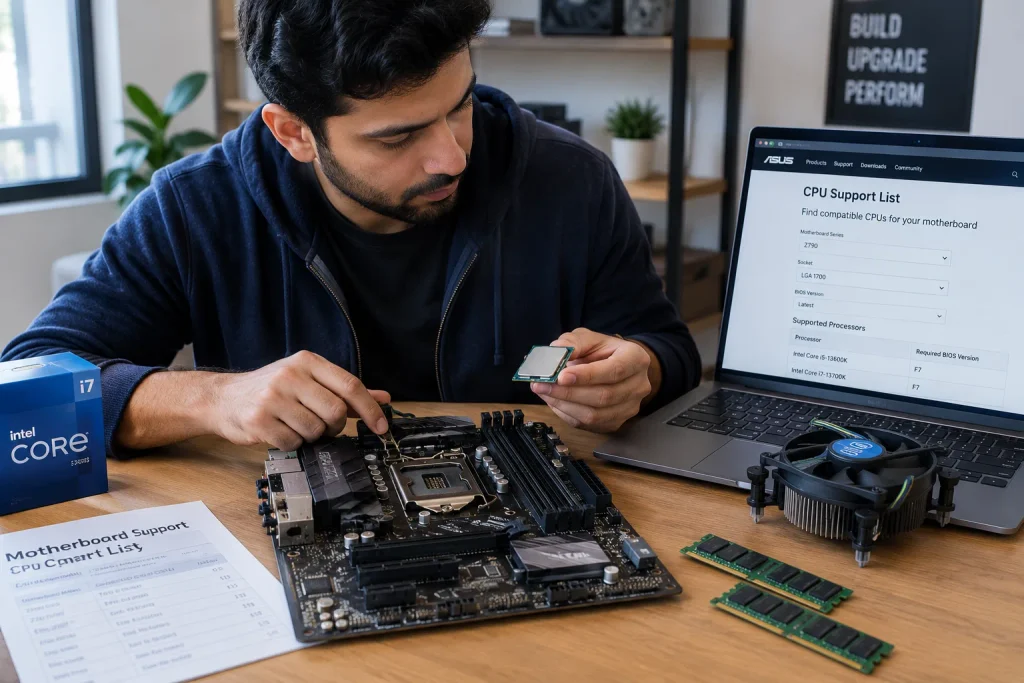
Not every processor can work with every motherboard. Verify the following before choosing a replacement.
CPU socket
Check the exact socket supported by your motherboard and the replacement processor. A physically different or electrically incompatible socket will prevent the processor from working.
Chipset and BIOS Support
Even processors that use the same socket may not be compatible with every motherboard.
Check your motherboard manufacturer’s official CPU support list to confirm compatibility with your chosen processor. Also verify the minimum required BIOS version before upgrading. You can consult Intel’s processor compatibility guidance or AMD’s processor support resources for additional information.
If your existing processor is needed to perform the update, make sure you can complete that step before removing it.
RAM Compatibility
Check whether your intended platform supports your existing memory type and configuration. A platform change may require different RAM, increasing the total cost of the upgrade.
Cooling and Power Requirements
Confirm that your CPU cooler supports the replacement processor and can handle its thermal requirements. Also check your motherboard’s power delivery, particularly if you are upgrading to a more power-hungry CPU. Our guide on what VRM is on a motherboard explains how the VRM regulates power supplied to the processor. Check cooler mounting compatibility, case clearance, and your system’s overall power requirements before buying a replacement.
For laptops, processors are often soldered to the motherboard, so a conventional desktop-style CPU upgrade may not be possible.
If you are unsure how the motherboard affects CPU compatibility, read our guide on what a motherboard is and how it works to understand its role in connecting and supporting your PC’s components.
6. How Much Performance Will a CPU Upgrade Provide?
The improvement depends on your current processor, the replacement, and the workload.
Before purchasing, compare independent benchmarks for:
- Single-core performance in applications that depend on fast individual cores.
- Multi-core performance in rendering, encoding, and other parallel workloads.
- Gaming performance in the titles and resolutions you use.
- Power consumption and cooling requirements.
- Platform cost, including any motherboard, RAM, or cooler replacement.
Avoid assuming that a newer generation, higher model number, or larger core count automatically guarantees a better experience.
Look for measurable improvements that solve your specific problem. If a replacement offers only a small benefit in your workload, spending the money on another component or saving for a more substantial upgrade may be a better decision.
7. Calculate the Total Cost of Upgrading
The price of the CPU is only one part of the upgrade cost.
Consider these possible expenses:
- Replacement processor.
- New motherboard, if required.
- Compatible RAM, if required.
- CPU cooler or mounting hardware.
- Thermal paste, if needed.
- Professional installation, if you do not want to install it yourself.
Compare the complete upgrade cost with the price of alternative improvements or a new system.
For example, adding RAM to a memory-constrained PC or replacing an old hard drive with an SSD may produce a more noticeable improvement in everyday responsiveness than buying a new processor.
If you want to recover some of the cost of your upgrade, learn how to sell your used CPU to understand how to prepare your processor for sale and create an honest listing.
8. When Should You Upgrade Something Other Than Your CPU?
A processor upgrade is not always the most effective solution.
| Problem | Upgrade or fix to consider |
|---|---|
| Memory usage is consistently excessive | Add compatible RAM |
| Slow file access and application loading | Upgrade to an SSD if appropriate |
| Poor gaming performance with a GPU limitation | Consider a graphics card upgrade |
| High temperatures and reduced CPU clock speeds | Improve cooling or resolve thermal issues |
| Unnecessary background CPU activity | Investigate and remove the underlying cause |
| Your current PC meets your needs | Keep your existing hardware |
The best upgrade is the one that removes your actual performance limitation, not necessarily the one with the highest specifications.
9. How to Upgrade Your CPU Safely
Once you have confirmed compatibility and decided to proceed, follow the instructions provided by your CPU and motherboard manufacturers.
Step 1: Confirm the replacement is compatible
Check the motherboard model, CPU support list, socket, chipset, BIOS requirements, memory compatibility, and cooler requirements.
Step 2: Prepare your computer
Back up important data, shut down the computer, switch off and disconnect the power supply, and allow the system to cool. Follow appropriate electrostatic-discharge precautions.
Step 3: Remove the cooler
Follow the cooler manufacturer’s instructions. If the cooler is stuck to the CPU by old thermal paste, gently twisting it as directed by the manufacturer may help release it. Avoid pulling forcefully.
Step 4: Remove the old processor
Release the socket retention mechanism and lift the CPU straight up carefully. Never touch the exposed motherboard socket pins (Intel LGA) or the CPU pins (AMD PGA), as bending even a single pin can permanently damage the hardware.
Step 5: Install the new processor
Align the processor’s gold triangle orientation marker with the socket marker and gently drop it into place without applying force. Secure the retention arm to lock it.
Step 6: Apply thermal paste and reinstall the cooler
Clean the CPU’s heat spreader and remove any old thermal paste. Apply new thermal paste according to the manufacturer’s instructions, then securely reinstall the CPU cooler.
Step 7: Reconnect and test the system
Reconnect the required cables, start the computer, and confirm that the processor is detected. Check temperatures, clock speeds, and system stability under a representative workload.
If the system fails to boot, consult the motherboard manual and troubleshoot the issue rather than repeatedly forcing restarts.
If you are unfamiliar with CPU installation, consider professional assistance. Incorrect handling can damage the processor, motherboard socket, or other components.
10. Is It Better to Upgrade Your CPU or Buy a New PC?
An individual CPU upgrade is often attractive when your motherboard supports a suitable replacement and the rest of the system remains capable.
A new PC or a more extensive platform upgrade may make more sense if:
- Your motherboard supports few worthwhile processors.
- You need a new motherboard and RAM anyway.
- Your power supply, cooling, or other components also require replacement.
- Your existing system has several performance limitations.
- The total upgrade cost approaches that of a more capable complete system.
Compare the total cost, expected performance, reliability, and future upgrade options before making your decision.
Conclusion: Should I Upgrade My CPU?
You should upgrade your CPU when your current processor is a measurable limitation, troubleshooting has not resolved the problem, and a compatible replacement offers enough improvement to justify its cost.
Start by monitoring your PC during the tasks that feel slow. Check CPU usage, memory usage, GPU activity, temperatures, and clock speeds. Then compare real-world benchmarks and confirm motherboard compatibility before buying anything.
If the CPU is not the bottleneck, improving your RAM, storage, cooling, or graphics card may provide better value.
The smartest CPU upgrade is not necessarily the newest or most expensive processor. It is the one that solves your performance problem at a reasonable total cost.
Frequently Asked Questions
How long does a CPU typically last?
A CPU can remain functional for many years, often well beyond the period in which its performance remains competitive. Upgrade when your workload requires more performance or your existing platform no longer meets your needs, not simply because the processor has reached a particular age.
Will upgrading my CPU improve gaming performance?
It can, particularly when the current CPU limits frame rates or causes CPU-related stuttering. The improvement depends on the game, graphics card, resolution, settings, and replacement processor.
Do I need a new motherboard to upgrade my CPU?
Not always. Some motherboards support several processor models, but compatibility depends on the socket, chipset, BIOS, and manufacturer’s CPU support list. Verify the exact combination before buying.
Does high CPU usage mean my processor is failing?
No. High utilization can be normal during demanding tasks. Investigate which applications are using the CPU and whether high utilization coincides with unacceptable performance.
Should I upgrade my CPU or RAM first?
If memory capacity is insufficient and the system frequently runs out of available RAM, a RAM upgrade may help more. If your processor is consistently limiting demanding applications, a CPU upgrade may be more appropriate.
Is upgrading an old CPU worth it?
It depends on the performance improvement available, platform compatibility, and total cost. An affordable compatible replacement may extend the life of a system, while a new platform may provide better value if several components need replacing.
Related reading: Can I Sell My Used CPU? A Guide to Selling a Processor