
Modern CPUs generate a lot of heat during demanding tasks like gaming, video editing, and rendering. To prevent overheating, they automatically reduce their clock speed when temperatures become too high. This built-in safety feature is called CPU thermal throttling.
Both Intel and AMD processors use thermal throttling to protect the CPU from heat-related damage and maintain system stability. Occasional throttling during heavy workloads is normal. However, frequent throttling usually indicates a cooling issue, such as dust buildup, old thermal paste, poor airflow, or an underperforming CPU cooler.
In this guide, you’ll learn what CPU thermal throttling is, how it works, what causes it, how to check if your CPU is throttling, and the best ways to fix and prevent it. If you’re unsure whether your temperatures are normal, you can also read our guides on Is 40°C Good for CPU, What Is a Hot CPU Temperature, and How to Check CPU Health for more detailed information.
What Is CPU Thermal Throttling? (Quick Answer)
CPU thermal throttling happens when a processor gets too hot and automatically reduces its performance to control its temperature. You may notice lower clock speeds, reduced gaming performance, or slower rendering. Occasional throttling can happen during demanding tasks, but frequent throttling is worth investigating. Check your CPU’s temperature and thermal-throttling status before changing hardware or replacing thermal paste.
Quick Fix: CPU Thermal Throttling?
If your CPU is thermal throttling, try these steps first:
- Clean dust from the CPU cooler, fans, and air vents.
- Check whether thermal paste needs replacement
- Improve case airflow by adding or repositioning fans.
- Increase the CPU fan speed in the BIOS or fan control software.
- Close unnecessary background programs that increase CPU usage.
- Remove CPU overclocking if temperatures are too high.
- Update your BIOS and chipset drivers.
- Monitor CPU temperatures with HWiNFO64 to confirm whether thermal throttling is occurring.
What Is CPU Thermal Throttling?
Definition
CPU thermal throttling is a built-in safety feature that automatically reduces your processor’s clock speed when it reaches a high temperature. This lowers heat output, prevents overheating, and helps protect the CPU from damage. Once the temperature returns to a safe range, the processor automatically resumes normal performance.
Why CPUs Generate Heat
CPUs generate heat whenever they process data. Every task, from browsing the web to gaming and video editing, requires billions of calculations every second. These calculations use electrical power, and some of that energy is naturally converted into heat. The heavier the workload, the more heat the processor produces.
Why Thermal Throttling Exists
Modern Intel and AMD processors include thermal throttling to keep the CPU operating within its safe temperature limit. Built-in thermal sensors constantly monitor the processor’s temperature. If it gets too hot, the CPU automatically reduces its clock speed and power consumption to cool down. This protects system stability, prevents unexpected shutdowns, and helps extend the lifespan of the processor.
How Does CPU Thermal Throttling Work?
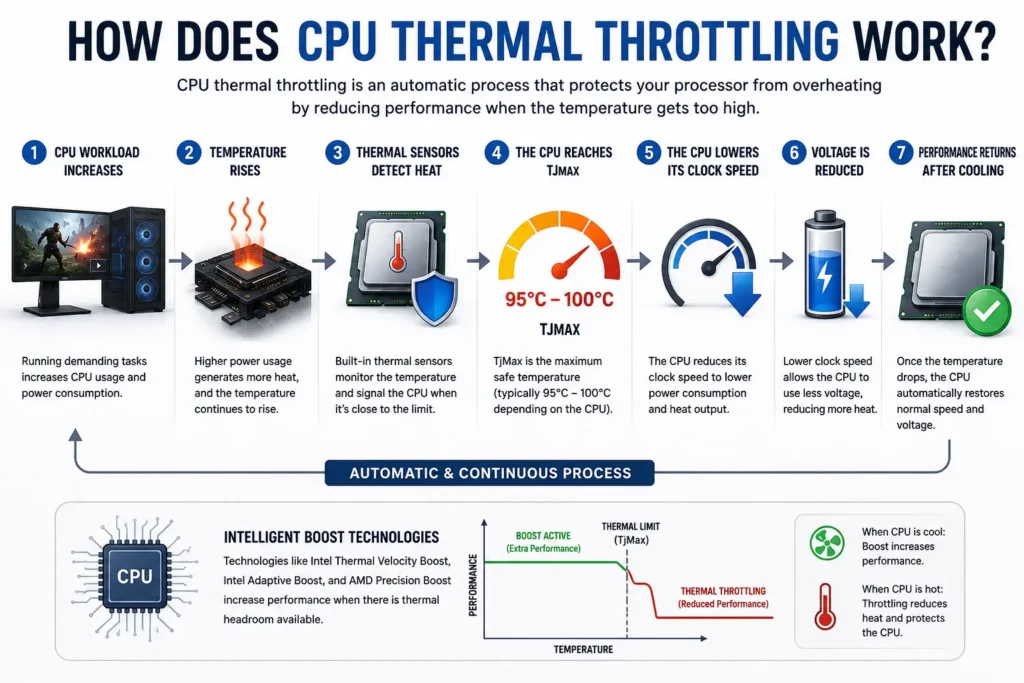
CPU thermal throttling is an automatic process that protects your processor from overheating. Modern Intel and AMD CPUs continuously monitor their temperature using built-in thermal sensors. When the processor approaches its maximum safe temperature, it temporarily reduces performance to lower heat and maintain system stability.
- CPU workload increases
Running demanding tasks such as gaming, video editing, 3D rendering, or stress testing increases CPU usage. As the processor works harder, it consumes more power. - Temperature rises
Higher power consumption generates more heat. If the CPU cooler cannot dissipate that heat quickly enough, the processor temperature continues to rise. - Thermal sensors detect heat
Built-in thermal sensors constantly monitor the CPU temperature. When the processor gets close to its safe thermal limit, they signal the CPU to begin thermal throttling. - The CPU reaches its thermal limit
TjMax (Maximum Junction Temperature) is the processor’s specified maximum junction temperature. The exact limit varies by CPU model, so check the manufacturer’s specifications for your specific processor. - The CPU lowers its clock speed
After reaching its thermal limit, the processor reduces its clock speed. Running at a lower frequency decreases power consumption and produces less heat. - Power and voltage may be adjusted
Depending on the processor and workload, the CPU may also adjust voltage and power consumption to control heat. The exact response varies by CPU model and its power-management behavior. - Performance returns after cooling
Once temperatures fall and sufficient thermal headroom becomes available, the processor may increase its clock speed and power consumption again. These adjustments happen automatically, although the exact behavior depends on the CPU and workload.
Modern processors also use intelligent boost technologies such as Intel Thermal Velocity Boost, Intel Adaptive Boost, and AMD Precision Boost to increase performance when thermal headroom is available. If temperatures become too high, these technologies automatically reduce or stop boosting until the CPU cools down.
At What Temperature Does CPU Thermal Throttling Start?
There is no single temperature at which every CPU starts thermal throttling. The limit depends on the processor model, and laptop cooling systems can behave differently from desktop systems. A temperature that is normal for one CPU may be close to the thermal limit of another.
To check your system, look up your exact CPU model on the manufacturer’s website and monitor its temperature and thermal-throttling indicators with HWiNFO64. Some processors may reduce boost performance before reaching their maximum thermal limit.
If your CPU frequently reaches its thermal limit or reports thermal throttling during normal workloads, inspect the cooler, fans, dust buildup, and case airflow before considering a hardware upgrade.
What Causes CPU Thermal Throttling?
CPU thermal throttling occurs when your processor reaches its safe temperature limit. While occasional throttling under heavy workloads is normal, frequent throttling usually indicates a cooling or performance issue.
Poor CPU Cooling
An inefficient CPU cooler cannot remove heat fast enough, causing the processor to overheat and throttle.
Old or Dry Thermal Paste
Old or dried thermal paste reduces heat transfer between the CPU and cooler, leading to higher temperatures.
Dust Build-up
Dust blocks heatsinks, fans, and air vents, restricting airflow and trapping heat inside the system.
Poor Case Airflow
Limited airflow prevents hot air from leaving the case, causing internal temperatures to rise.
Faulty CPU Fan
A slow or failed CPU fan cannot cool the processor properly, increasing the risk of thermal throttling.
Stock CPU Cooler Limitations
Stock coolers are suitable for everyday use but may struggle during gaming, rendering, or other CPU-intensive tasks.
High Ambient Temperature
A hot room makes it harder for the cooling system to dissipate heat, causing the CPU to reach higher temperatures.
CPU Overclocking
Overclocking increases power consumption and heat output. Without adequate cooling, the CPU may throttle to protect itself.
Motherboard VRM Overheating
A motherboard’s VRM helps deliver stable power to the CPU. If it overheats, it may limit performance in some systems. However, this is different from CPU thermal throttling caused by high CPU temperatures. Learn more in our guide to what a VRM is on a motherboard.
Heavy Background Applications
Multiple background processes can keep CPU usage high, generating extra heat. Read our Why Is My CPU Usage So High guide for more details.
Video Editing and Rendering
Video editing, 3D rendering, and similar workloads keep the CPU under sustained load, increasing temperatures.
Modern AAA Games
CPU-intensive games can push the processor to its thermal limit, especially during long gaming sessions.
Laptop Cooling Limitations
Laptops have compact cooling systems and limited airflow, making them more likely to experience thermal throttling than desktop PCs.
Common Symptoms of CPU Thermal Throttling
When a CPU becomes too hot, it automatically reduces its performance to control temperature. The following signs often indicate that your processor is thermal throttling.
- FPS drops: Games may lose frames suddenly, resulting in lower and inconsistent performance.
- Stuttering: Gameplay and demanding applications may freeze or hitch for a moment before continuing.
- Lag: Programs can become slow to respond, especially during heavy CPU workloads.
- High CPU temperatures: CPU temperatures consistently above 90°C under load may trigger thermal throttling.
- Loud cooling fans: CPU and case fans may spin at maximum speed as they try to remove excess heat.
- Lower benchmark scores: Performance tests may produce lower-than-expected results because the CPU cannot maintain its maximum clock speed.
- Slow rendering: Video editing, 3D rendering, and other CPU-intensive tasks may take longer to complete.
- Clock speed drops: Monitoring tools such as HWiNFO64, Intel XTU, or Ryzen Master may show the CPU clock speed decreasing automatically when temperatures become too high.
If you notice several of these symptoms together, check your CPU temperature and cooling system to confirm whether thermal throttling is occurring.
CPU Thermal Throttling on Laptops vs Desktops
Both laptops and desktops can experience CPU thermal throttling, but laptops are generally more likely to throttle because they have smaller cooling systems and less airflow.
| Feature | Laptop | Desktop |
| Cooling System | Compact heatsinks and small fans | Larger coolers and better airflow |
| Airflow | Limited internal space | More room for airflow |
| Thermal Throttling | More common under heavy workloads | Less common with proper cooling |
| Cooling Upgrade | Limited options | Easy to upgrade coolers and fans |
Cooling Differences
Desktop PCs use larger CPU coolers, bigger fans, and spacious cases that remove heat more efficiently. Laptops rely on compact cooling systems, so temperatures can rise much faster during demanding tasks.
Gaming Laptops
Gaming laptops are designed for high performance, but they can still thermal throttle during long gaming sessions. This is normal if the CPU reaches its thermal limit, especially in thin designs.
Ultrabooks
Ultrabooks prioritize portability over cooling performance. Their slim chassis limits airflow, making thermal throttling more common during CPU-intensive tasks such as video editing or multitasking.
Cooling Pads
A laptop cooling pad can improve airflow underneath the device and help reduce CPU temperatures. While it will not solve every cooling problem, it may reduce thermal throttling during extended workloads.
OEM Fan Software
Many laptop manufacturers provide fan control software that lets you switch to a higher cooling mode. Examples include ASUS Armoury Crate, Lenovo Vantage, MSI Center, Alienware Command Center, and HP OMEN Gaming Hub. Increasing the fan profile can help lower CPU temperatures under load.
Repasting Precautions
Replacing thermal paste can improve cooling, but it should be done carefully. Opening a laptop may void the warranty on some models, and improper installation can damage internal components. If you’re not experienced with laptop repairs, consider having the thermal paste replaced by a qualified technician.
How to Check if Your CPU Is Thermal Throttling
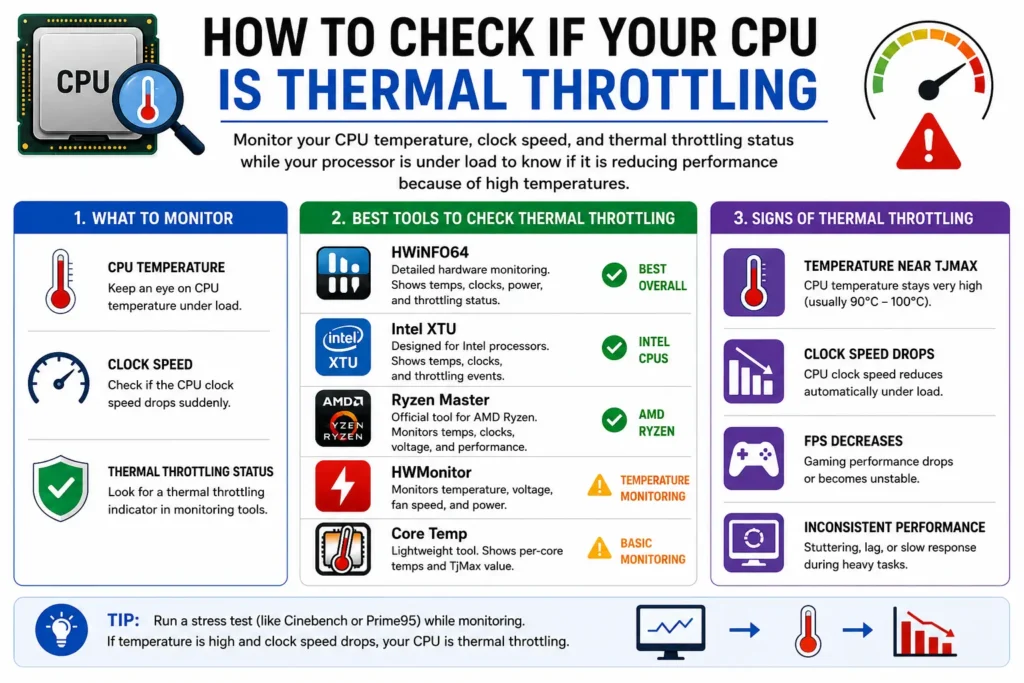
The easiest way to confirm CPU thermal throttling is to monitor your CPU temperature, clock speed, and thermal throttling status while your processor is under load. The following tools can help you identify whether your CPU is reducing performance because of high temperatures.
| Tool | Best For | Detects Thermal Throttling |
| HWiNFO64 | Detailed hardware monitoring | ✅ Yes |
| Intel XTU | Intel processors | ✅ Yes |
| Ryzen Master | AMD Ryzen processors | ✅ Yes |
| HWMonitor | Temperature and voltage monitoring | ⚠️ Limited |
| Core Temp | Basic CPU temperature monitoring | ⚠️ Limited |
HWiNFO64
HWiNFO64 is one of the best tools for checking CPU thermal throttling. It displays real-time CPU temperatures, clock speeds, power usage, and a dedicated Thermal Throttling status, making it easy to identify overheating issues.
Intel XTU
Intel Extreme Tuning Utility (XTU) is designed for Intel processors. It shows CPU temperature, clock speed, and thermal throttling events, while also allowing advanced users to adjust performance settings.
Ryzen Master
AMD Ryzen Master is AMD’s official monitoring software. It displays CPU temperature, clock speed, voltage, and performance data for Ryzen processors, helping you determine if thermal throttling is occurring.
HWMonitor
HWMonitor tracks CPU temperature, voltage, fan speed, and power consumption. While it does not always display a dedicated thermal throttling indicator, it can help you identify overheating by monitoring high CPU temperatures.
Core Temp
Core Temp is a lightweight tool that monitors the temperature of each CPU core and shows the processor’s TjMax value. It is useful for basic temperature monitoring but provides fewer thermal throttling details than HWiNFO64 or manufacturer tools.
How to Fix CPU Thermal Throttling
If your CPU is thermal throttling frequently, the solution is to reduce its temperature and improve cooling. Start with the simplest fixes before moving on to advanced methods.
Clean Dust
Dust blocks heatsinks, fans, and air vents, reducing airflow. Clean your CPU cooler, case fans, and filters regularly to improve cooling performance.
Replace Thermal Paste
Old or dried thermal paste reduces heat transfer between the CPU and cooler. Applying fresh thermal paste can lower CPU temperatures and reduce thermal throttling. Learn more in our What Is Thermal Paste guide.
Improve Airflow
Make sure cool air can enter the case and hot air can exit easily. Organize cables, remove airflow obstructions, and add case fans if needed.
Upgrade CPU Cooler
If you’re using a stock cooler, consider upgrading to a high-quality air cooler or an AIO liquid cooler. Better cooling helps the CPU maintain higher clock speeds under load.
Increase Fan Speed
Set a more aggressive fan curve in your BIOS or fan control software. Faster fan speeds help remove heat more quickly during demanding tasks.
Lower Room Temperature
High ambient temperatures make cooling less effective. Using your PC in a cooler room can help reduce CPU temperatures.
Close Unnecessary Programs
Background applications increase CPU usage and heat. Close programs you don’t need to reduce the processor workload.
Disable CPU Overclocking
Overclocking increases power consumption and heat. Returning your CPU to its default settings can improve temperature and system stability.
Undervolt the CPU (Advanced)
Undervolting reduces CPU voltage without significantly affecting performance. When done correctly, it can lower temperatures and reduce thermal throttling. This method is recommended for experienced users.
Update BIOS
A BIOS update may improve CPU power management, fan control, and thermal performance. Always install the latest BIOS version provided by your motherboard or laptop manufacturer.
Update Chipset Drivers
Outdated chipset drivers can affect CPU power management. Installing the latest chipset drivers helps your operating system communicate with the processor more efficiently and may improve overall system performance.
Laptop-Specific Thermal Throttling Fixes
Laptops are more likely to experience CPU thermal throttling because they have limited internal space and smaller cooling systems. These steps can help reduce CPU temperatures and improve performance.
Use a Cooling Pad
A quality cooling pad improves airflow underneath your laptop. It can help lower CPU temperatures during gaming, video editing, and other demanding tasks.
Elevate Your Laptop
Place your laptop on a hard, flat surface or use a laptop stand. Raising the rear of the laptop improves airflow and prevents the air vents from being blocked.
Clean the Air Vents
Dust can restrict airflow and trap heat inside the laptop. Clean the air vents regularly using compressed air to maintain proper cooling.
Select a Higher Fan Profile
Many laptops allow you to increase fan speed through the manufacturer’s software. Switching to a Performance or Turbo fan profile can improve cooling during heavy workloads.
ASUS Armoury Crate
If you use an ASUS laptop, Armoury Crate lets you adjust fan modes and performance settings to help reduce CPU temperatures.
Lenovo Vantage
Lenovo Vantage provides thermal management and fan control options for supported Lenovo laptops, helping improve cooling under load.
MSI Center
MSI Center allows MSI laptop users to monitor CPU temperatures and switch between different cooling and performance profiles.
Alienware Command Center
Alienware Command Center lets you customize thermal profiles and fan speeds on compatible Dell Alienware laptops to reduce thermal throttling during demanding applications.
These fixes can significantly reduce CPU thermal throttling, but if your laptop continues to overheat, inspect the cooling system, replace old thermal paste if necessary, or have the laptop serviced by a qualified technician.
CPU Thermal Throttling While Gaming
CPU thermal throttling can noticeably affect gaming performance. When the processor reaches its thermal limit, it automatically lowers its clock speed to reduce heat. As a result, games may become less smooth and responsive.
FPS Drops
One of the most common signs of CPU thermal throttling is a sudden drop in FPS. Your average frame rate may decrease during demanding scenes. You may also notice lower 1% low FPS and less consistent frame times, which can make gameplay feel less smooth even if the average FPS remains relatively stable.
Frame-Time Spikes
Even if your FPS appears stable, thermal throttling can cause frame-time spikes. This leads to stuttering and inconsistent gameplay.
Streaming
Streaming while gaming places additional load on the CPU. Running games and streaming software at the same time increases CPU temperatures, making thermal throttling more likely if your cooling system is not adequate.
AAA Games
Modern AAA games such as open-world, simulation, and strategy titles can keep the CPU under heavy load for long periods. If your cooling solution cannot keep up, the processor may throttle to stay within its safe temperature limit.
Competitive Gaming
Competitive games rely on consistent CPU performance for smooth gameplay and low input latency. Frequent CPU thermal throttling can cause FPS fluctuations, stuttering, and reduced responsiveness, which may affect your gaming experience.
To reduce CPU thermal throttling while gaming, keep your cooling system clean, maintain good airflow, monitor CPU temperatures, and use a cooling solution that matches your processor’s performance requirements.
Can CPU Thermal Throttling Be Prevented?
Yes. While occasional CPU thermal throttling during heavy workloads is normal, frequent throttling can often be prevented with proper cooling and regular maintenance. Following these best practices helps keep CPU temperatures under control and maintain consistent performance.
CPU Thermal Throttling Prevention Checklist
- ✅ Clean your PC or laptop every 6 months to remove dust from fans, heatsinks, and air vents.
- ✅ Replace thermal paste when needed, such as after removing the CPU cooler or when troubleshooting suggests a heat-transfer problem.
- ✅ Monitor CPU temperature, clock speed, and thermal throttling using tools such as HWiNFO64.
- ✅ Maintain good airflow by keeping cables organized and ensuring case fans are working properly.
- ✅ Keep your BIOS updated to benefit from the latest thermal and power management improvements.
- ✅ Use a quality CPU cooler that matches your processor’s power requirements.
- ✅ Avoid blocking laptop air vents by using the device on a hard, flat surface.
- ✅ Do not overclock your CPU unless you have a cooling system designed to handle the extra heat.
Following these simple maintenance steps can reduce the risk of CPU thermal throttling, improve cooling efficiency, and help your processor maintain its maximum performance during demanding workloads.
CPU Thermal Throttling vs CPU Overheating
CPU thermal throttling and CPU overheating are closely related, but they are not the same. Thermal throttling is a built-in protection feature, while overheating is a temperature problem. When a CPU overheats, it automatically activates thermal throttling to reduce heat and prevent damage.
| Feature | CPU Thermal Throttling | CPU Overheating |
| What It Is | A built-in CPU protection feature | A condition where the CPU becomes too hot |
| Cause | Triggered when the CPU reaches its thermal limit | Poor cooling, dust, old thermal paste, or high workload |
| CPU Clock Speed | Automatically reduced | May remain high until throttling starts |
| Performance | Drops temporarily to reduce heat | Can become unstable if temperatures continue to rise |
| Purpose | Protects the processor from overheating | Indicates a cooling problem that needs attention |
| Risk | Normal and safe when occasional | Prolonged overheating can affect system stability |
| Solution | Improve cooling if it happens frequently | Clean the cooling system, improve airflow, replace thermal paste, or upgrade the CPU cooler |
In simple terms, CPU overheating is the problem, while CPU thermal throttling is the CPU’s automatic response to that problem. Occasional thermal throttling during demanding tasks is normal. However, if your CPU overheats regularly and throttles frequently, you should inspect your cooling system and fix the underlying cause.
Common Myths About CPU Thermal Throttling
There are many misconceptions about CPU thermal throttling. Understanding the facts can help you diagnose performance issues correctly and avoid unnecessary hardware upgrades.
| Myth | Reality |
| Thermal throttling damages the CPU. | False. Thermal throttling is a built-in safety feature that protects the processor from overheating. |
| Only old computers experience thermal throttling. | False. Both new and old Intel and AMD processors can throttle when they reach their thermal limit. |
| A better CPU cooler always eliminates thermal throttling. | False. While a better cooler helps, poor airflow, dust, high room temperature, or old thermal paste can still cause throttling. |
| Thermal throttling means the CPU is defective. | False. In most cases, thermal throttling is caused by high temperatures, not a faulty processor. |
| Gaming always causes CPU thermal throttling. | False. A properly cooled system can run demanding games without thermal throttling. |
| Replacing thermal paste fixes every overheating problem. | False. Fresh thermal paste improves heat transfer, but other cooling issues may also need to be addressed. |
| Higher fan speed completely prevents thermal throttling. | False. Faster fans improve cooling, but they cannot compensate for an inadequate cooler or poor airflow. |
Knowing the difference between myths and facts makes it easier to identify the real cause of CPU thermal throttling and choose the right solution.
Is CPU Thermal Throttling Dangerous?
CPU thermal throttling is a built-in protection feature that helps prevent the processor from exceeding its thermal limits. Occasional throttling during demanding workloads is not usually a cause for concern.
However, frequent throttling can reduce performance and may indicate a cooling problem. If it happens regularly, check your CPU’s thermal status, cooler, fans, and airflow.
In short, thermal throttling helps protect your CPU, but repeated throttling is worth investigating to identify the underlying cause.
Real-World Example: Finding the Cause of CPU Thermal Throttling
Imagine you’re playing a demanding game and notice that performance drops after several minutes. You open HWiNFO64 and find that the CPU is reaching its thermal limit and reporting thermal throttling.
Before buying a new cooler, check whether the CPU fan is working properly, dust is blocking the heatsink, or the cooler is mounted correctly. Also make sure the case has adequate airflow.
After fixing any problems you find, run the same game again under similar conditions. Compare CPU temperatures, clock speeds, and thermal-throttling readings to see whether performance has improved.
The results depend on your processor, cooling system, and the cause of the problem. If thermal throttling continues, further troubleshooting may be necessary.
Frequently Asked Questions
Is CPU thermal throttling normal?
Yes. Occasional CPU thermal throttling during gaming, video editing, or other demanding tasks is normal. It helps prevent the processor from overheating.
At what temperature does throttling start?
There is no universal temperature at which all CPUs begin thermal throttling. The limit depends on the processor model and its thermal specifications. Check your CPU manufacturer’s documentation to find its thermal limit.
Can thermal paste fix throttling?
It can help if the existing thermal paste is old or dried out. Replacing it improves heat transfer and may reduce CPU temperatures.
Can undervolting reduce throttling?
Yes. Undervolting lowers CPU voltage, which reduces heat output. When done correctly, it can help reduce thermal throttling without noticeably affecting performance.
Is thermal throttling common in laptops?
Yes. Laptops are more likely to thermal throttle because they have compact cooling systems and limited airflow.
How often should I replace thermal paste?
There is no universal schedule for replacing thermal paste. It may need replacement when the CPU cooler is removed or when troubleshooting suggests poor heat transfer. Check CPU temperatures and cooling performance before replacing it.
Conclusion: What Is CPU Thermal Throttling
CPU thermal throttling is a built-in safety feature that protects your processor from overheating by reducing its clock speed when temperatures become too high. Occasional throttling during demanding tasks is normal, but frequent throttling usually indicates a cooling problem that needs attention.
To keep your CPU performing at its best, clean dust regularly, replace thermal paste when needed, maintain good airflow, and monitor CPU temperatures. These simple maintenance steps can help reduce thermal throttling and improve long-term system performance.