

Update: 6 July 2026
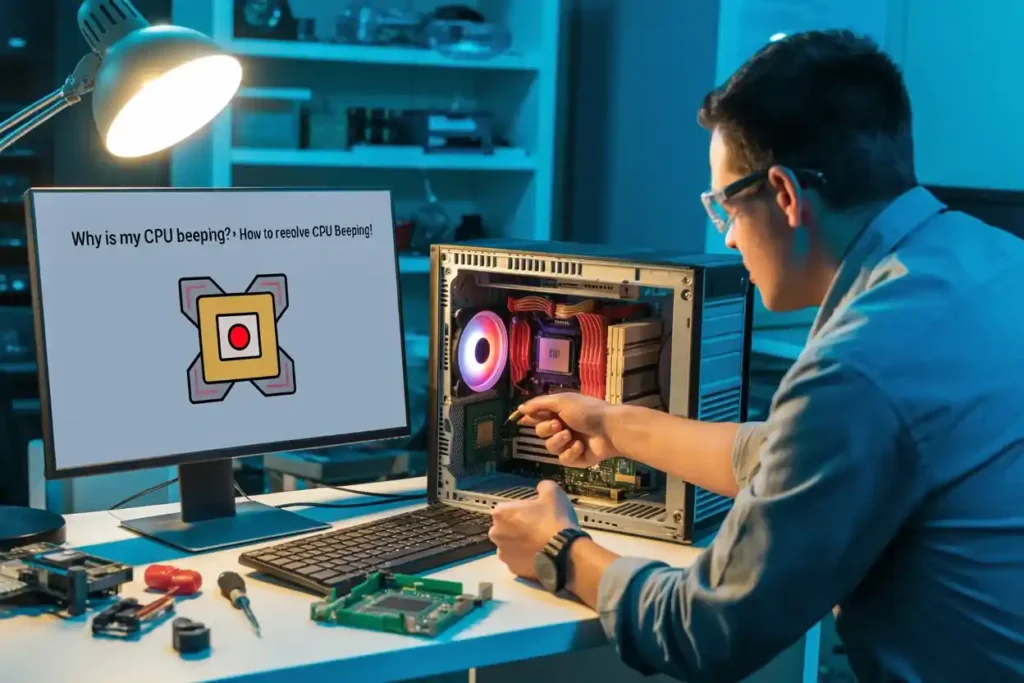
Although many people search for “Why is my CPU beeping?”, the CPU itself does not produce beep sounds. Instead, the motherboard speaker generates beep codes during the Power-On Self-Test (POST) to identify hardware problems such as faulty RAM, graphics card issues, overheating, or motherboard failures.
Is your computer beeping when you turn it on? These startup beep codes are the motherboard’s way of reporting hardware problems before Windows loads. In this guide, you’ll learn what different beep patterns mean, what causes them, and how to fix the issue step by step. This issue is more common in desktop PCs during startup when hardware is being initialized before Windows loads.
This guide is designed for desktop users facing startup beep issues and covers both basic and advanced troubleshooting steps.
Startup beeps occur before Windows loads while the motherboard performs the Power-On Self-Test (POST). During this process, the motherboard checks essential hardware such as the CPU, RAM, graphics card, and other components. If a problem is detected, the motherboard speaker plays a specific beep pattern to help identify the faulty hardware.
Step 1: Understand Startup Beep Codes
Important: Beep Codes Vary by BIOS Manufacturer
The meaning of startup beep codes depends on the BIOS or UEFI firmware installed on your motherboard. Manufacturers such as AMI, Award, and Phoenix use different beep patterns to indicate hardware problems. Always refer to your motherboard manual or the manufacturer’s support documentation for the most accurate interpretation.
Since startup beep codes are generated by the motherboard during POST, understanding What Is a Motherboard in a Computer can help explain why these alerts occur.
Common Beep Codes:
| Beep Pattern | Typical Meaning | First Thing to Try |
|---|---|---|
| One short beep | POST completed successfully (normal startup) | No action needed |
| Repeated short beeps | RAM or memory problem | Reseat or test the RAM |
| Continuous beeping | CPU overheating, cooling failure, or power issue | Check the CPU cooler, fans, and airflow |
| One long and two or three short beeps | Graphics card or display problem | Reseat the graphics card |
| No beep | Power supply, motherboard, or speaker issue | Verify power connections and motherboard components |
You must check your motherboard manual to see what your specific beep codes mean.
Note: Beep code meanings vary between AMI, Award, Phoenix, and other BIOS manufacturers. Always check your motherboard manual or the manufacturer’s support page for the correct interpretation.
Step 2: Check for Loose Connections
One of the simplest reasons for the PC beeping is that something inside your computer is not connected correctly. If cables, memory (RAM), or other parts are not securely plugged in, your computer will beep to warn you.
How to Fix?
- Before starting any fix, turn off your computer and unplug it.
- Open the computer case carefully.
- Check that all cables (like power cables and motherboard connections) are tightly plugged in.
- Reseat the RAM by removing it and reinserting it firmly into its slot.
- Make sure the graphics card (if you have one) is also properly connected to the motherboard.
In many desktop PCs, startup beeping is often caused by RAM or graphics cards becoming slightly loose after moving the computer or performing hardware upgrades.
Step 3: Fix CPU Beeping Caused by Overheating
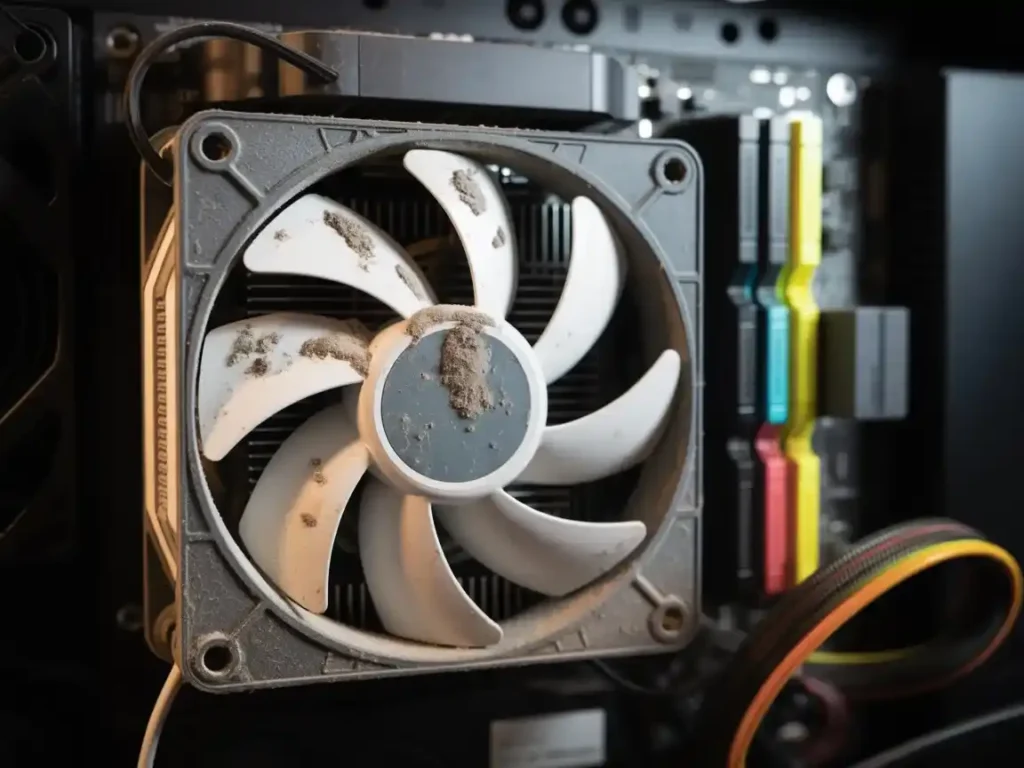
Overheating can trigger warning beeps on many motherboards. Dust buildup, failed cooling fans, blocked airflow, or dried thermal paste can all cause temperatures to rise beyond safe operating limits.
If your processor is running hotter than normal, see our guide What Is a Hot CPU Temperature for a Laptop.
If the internal temperature of your CPU gets too high, your system will beep to warn you. This can happen if your computer lacks airflow or dust has built up on the cooling components, like the fan.
Important: If the CPU cooler fan is not spinning or the system shuts down immediately after beeping, turn the computer off and avoid repeated startup attempts until the cooling issue is resolved.
How to Fix?
- Check the Temperature: Download software like HWMonitor or Core Temp to check the CPU temperature. If it is too high, it’s time to clean.
- Turn off your computer.
- Clean the Fans and Vents: Use compressed air to blow out the dust from the cooling fan and the heat sink.
- Check the Fan: Ensure the fan is working correctly. If it is not spinning, you may need to replace it.
- Ensure Proper Ventilation: Place your computer in a well-ventilated area and avoid blocking the cooling vents.
Step 4: Test and Reseat the RAM (Fix Memory Issues)
If your computer beeps repeatedly, it could be due to a problem with the RAM (memory). This could happen if the RAM is not seated correctly or damaged.
Memory-related problems are among the most common causes of startup beep codes. Even a working RAM module can trigger beeps if it is not fully seated in its slot.
How to Fix?
- Turn off your computer.
- Open the computer case.
- Locate the RAM sticks (they are long, thin modules inserted into slots on the motherboard).
- Remove and Reseat the RAM: Carefully pull the RAM sticks out and then push them back in securely.
- Test the RAM: If reseating does not fix the issue, try booting the computer with just one RAM stick at a time to see if one is faulty.
Example: If your computer starts producing repeated short beeps immediately after installing new RAM, the memory module may not be fully seated or compatible with your motherboard. Removing and reinstalling the RAM often resolves the issue.
Step 5: Check the Graphics Card (If You Have One)
Another common issue that can cause CPU beeping is a problem with the graphics card. If the card is not installed correctly or there is a fault, your computer may beep.
Graphics card issues often produce beep codes together with a blank screen. This is especially common after installing a new GPU or reconnecting display hardware.
How to Fix?
- Turn off your computer.
- Open the computer case and locate your graphics card (if you have one).
- Reseat the Card: If your graphics card is loose, remove it carefully and place it back in its slot securely.
- Test the Graphics Card: If the beeping continues, try using onboard graphics (if your motherboard has this feature) to see if the issue is with the graphics card.
Step 6: Inspect the Motherboard (If the Issue Persists)
If you have checked all the components above and the beeping continues, it might be time to look at the motherboard. A motherboard failure is a serious issue and might require professional help.
How to Fix?
- Visual Inspection: Carefully inspect the motherboard for burnt components, bulging capacitors, damaged traces, or loose connectors that could prevent the system from completing POST.
- Reset the BIOS: Incorrect BIOS settings can sometimes trigger startup beep codes. Reset the BIOS by clearing the CMOS using the motherboard jumper or by removing the CMOS battery for a few minutes before reinstalling it.
- Check the CMOS Battery: If your motherboard is several years old, a weak CMOS battery may cause BIOS settings to reset unexpectedly, leading to startup problems or POST errors.
- Seek Professional Help: If the system continues beeping after checking the RAM, graphics card, cooling system, and BIOS settings, the motherboard itself may be faulty and should be tested by a qualified technician.
Step 7: Test with Minimal Hardware (For Further Troubleshooting)
If the beeping continues, try running your computer with only the essential hardware components connected. This helps identify if any particular component is causing the issue.
How to Fix?
- Disconnect Non-Essential Hardware: Disconnect extra hard drives, peripherals, and expansion cards.
- Test with Basic Setup: Try booting the system with just the motherboard, CPU, one RAM stick, and the power supply. This will help isolate the problem.
If the computer starts normally with only the essential components installed, reconnect the remaining hardware one device at a time. This method helps identify which component is causing the startup beep codes.
Why Is My Computer Beeping Continuously?
Continuous beeping usually indicates a hardware problem such as overheating, faulty RAM, or an unstable power supply. Start by checking the beep pattern, reseating the memory modules, inspecting the CPU cooler, and verifying all power connections.
Why Does My Computer Beep Once Then Start Normally?
A single short beep during startup usually means the POST completed successfully and your hardware passed its initial checks. On most desktop motherboards, one short beep is normal and does not indicate a problem.
Why Is My Computer Beeping but Not Turning On?
If your computer is beeping but not turning on properly, the system is usually failing the POST (Power-On Self-Test). Common causes include faulty RAM, graphics card problems, motherboard issues, or power supply faults. Identifying the beep pattern can help narrow down the exact cause.
Why Is My PC Beeping and Showing a Black Screen?
A black screen combined with startup beeps often points to a graphics card problem, memory issue, or motherboard fault. Try reseating the RAM and graphics card first, as these are among the most common causes.
Step 8: Preventive Maintenance Tips
To avoid future computer beeping issues, it is important to take care of your computer regularly.
Maintenance Tips:
- Regularly clean your PC to prevent dust buildup.
- Ensure proper airflow around your computer to avoid overheating.
- Check connections regularly to ensure the hardware is seated correctly.
- Keep your BIOS updated only when recommended by your motherboard manufacturer, especially if the update fixes hardware compatibility or stability issues. You should also keep chipset and graphics drivers up to date after Windows loads.
FAQs:
What should I do if my CPU keeps beeping?
If your CPU keeps beeping, first check for loose connections, overheating, or faulty RAM. Follow the steps above to clean, reseat parts, and check the components.
How can I stop my CPU from overheating?
Clean the fans and vents, ensure good airflow, and check the CPU temperature to prevent overheating. Make sure your cooling system is working correctly.
Can bad RAM cause continuous beeping?
Yes. Faulty or improperly seated RAM is one of the most common reasons for repeated startup beep codes. Try reseating the memory or testing one RAM stick at a time.
What is the most common cause of the CPU beeping?
The most common cause is overheating or improper connections. Make sure cables and RAM are securely connected, and clean the cooling components regularly.
Why is my CPU making a beeping sound?
A beeping CPU typically signals hardware issues like loose connections, overheating, or memory problems. Check cables, components, and consult your motherboard manual for beep codes.
Why is my computer beeping on startup?
A startup beep usually indicates a hardware issue detected during POST, such as RAM failure, overheating, or graphics card problems. The beep pattern helps identify the exact issue.
Conclusion: Why Is My CPU Beeping?
Startup beep codes help identify hardware problems before Windows loads, making them an important part of the POST diagnostic process. In most cases, startup beeps are caused by loose or faulty RAM, graphics card issues, overheating, or motherboard-related problems. By identifying the correct beep pattern and following the troubleshooting steps in this guide, you can often fix the problem without replacing unnecessary hardware. If the beeping continues, consult your motherboard manual or have the system tested by a qualified technician.
Still stuck with system beeping problems? Leave a comment below, and we will help you troubleshoot!
Also read:
Why Is My CPU Clock Speed So High? – Find Out Here!
Is 4000RPM Too Low For CPU Fan? Everything You Need to Know!