

Why Is My CPU Beeping? The CPU itself does not normally produce startup beep sounds. Instead, a motherboard speaker or diagnostic buzzer may generate beep codes during the Power-On Self-Test (POST) to indicate a hardware problem. Depending on your computer, the cause could involve RAM, graphics hardware, CPU cooling, or another component.
If your computer beeps when you press the power button, pay attention to the number, length, and repetition of the beeps. These details can help you identify the problem before replacing any hardware.
This guide explains how to interpret startup beep codes, troubleshoot common hardware problems, and determine when professional assistance may be necessary.
A beep code is a useful starting point, but it does not always identify a failed component by itself. The same beep pattern can mean different things on different motherboard models. Before replacing RAM, a graphics card, or another part, check your motherboard manufacturer’s documentation and compare the beep pattern with any diagnostic LEDs on the board. This helps narrow down the cause without spending money on hardware that may still be working.
Why Does a Computer Beep During Startup?
When you turn on a desktop computer, the motherboard begins checking essential hardware during the Power-On Self-Test (POST). These checks help determine whether the system can proceed with startup.
If the computer detects a problem, it may produce a series of beeps, display a diagnostic LED, show an error code, or stop before the operating system loads. The exact behavior depends on the motherboard or computer model.
Common areas to investigate include:
- RAM: Memory may be incorrectly installed, incompatible, or faulty.
- Graphics hardware: A graphics card may be improperly seated, lack power, or have a hardware fault.
- CPU cooling: A disconnected fan, cooling problem, or temperature warning may prevent normal startup.
- Motherboard: A hardware fault or firmware-related problem may interrupt POST.
- Power supply or connections: Insufficient or unstable power can prevent hardware from initializing correctly.
Not every computer uses audible beep codes. Some systems rely on diagnostic lights, numeric displays, or manufacturer-specific error messages instead.
Step 1: Identify the Beep Pattern
Before opening your computer, record what happens when you press the power button.
Listen for whether the computer produces one short beep, several short beeps, a combination of long and short beeps, or continuous beeping. Also note whether the screen remains black, the computer restarts, or Windows loads normally.
Common Beep Patterns and Their Possible Meanings
Beep codes are not universal. The following table provides general troubleshooting starting points, not definitive diagnoses.
| Beep pattern or symptom | What it may indicate | What to do first |
|---|---|---|
| One short beep | Successful POST on some systems; behavior varies by manufacturer and model | If the computer starts normally, check the manufacturer’s documentation to confirm whether the beep is expected |
| Repeated short beeps | A memory or other hardware problem, depending on the system | Record the pattern and check the manufacturer’s beep-code guide |
| Continuous beeping | A hardware error or warning; the cause varies by system | Note the beep pattern and consult the computer or motherboard manual |
| Long and short beeps in a sequence | A specific hardware or initialization error | Count the long and short beeps and consult the model-specific documentation |
| No beep | Normal operation on some systems, or no audible diagnostic signal | Check whether the computer starts, inspect diagnostic LEDs, and consult the system documentation |
For a concrete example, ASUS documents the following patterns for compatible motherboards:
- One long beep followed by two short beeps: Memory anomaly.
- One long beep followed by three short beeps: Graphics card anomaly.
- One long beep followed by four short beeps: Possible CPU fan error, CPU overtemperature error, or CPU overvoltage error.
Why Your Motherboard Manual Matters
Beep codes are not universal across all computers. Their meaning can vary by motherboard model, BIOS implementation, and diagnostic system. For example, ASUS documents specific meanings for certain beep patterns on supported systems, but those meanings should not automatically be applied to another motherboard. Check the manual or official support page for your exact model before deciding which component to troubleshoot.
For more information, consult the official ASUS motherboard buzzer troubleshooting guide. If you have a branded desktop or laptop, use the manufacturer’s documentation for your exact model.
Understanding what a motherboard does can also help you understand where these diagnostic alerts originate.
What to Check Before Replacing Any Hardware
A beep code does not automatically mean that a component has failed. Use these checks to narrow down the problem before buying replacement parts.
- The PC beeps but starts normally: Check the motherboard manual to determine whether the sound is a normal startup signal or a warning.
- The PC beeps and shows no display: Check the RAM, graphics card, monitor connection, and motherboard diagnostic indicators.
- The beeping started after installing new hardware: Turn off the PC, disconnect its power, and check whether the new component is compatible and properly installed.
- The PC beeps after cleaning or moving it: Check whether the RAM, graphics card, and power connectors have become loose.
- The beep pattern repeats after basic checks: Record the exact pattern and consult the motherboard manufacturer’s troubleshooting guide before replacing parts.
These checks help narrow down the likely cause, but they cannot confirm a faulty component without further diagnosis.
Step 2: Check the Power and Hardware Connections
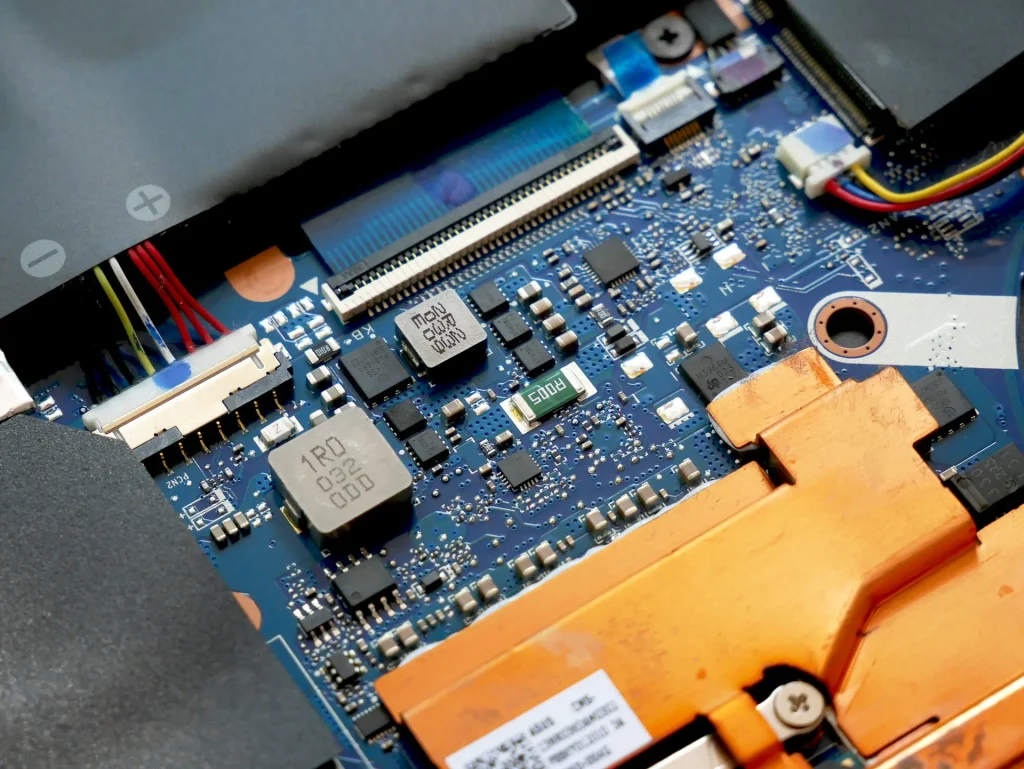
Loose or improperly connected components can prevent a computer from completing POST, particularly after moving the PC, cleaning it, or installing new hardware.
Before inspecting internal components, shut down the computer, switch off the power supply if it has a switch, and unplug the power cable. Follow appropriate electrostatic discharge (ESD) precautions before touching internal hardware.
Never reseat internal components while the computer is powered on.
How to Check the Connections
- Check that the external power cable is firmly connected.
- Inspect the motherboard’s main power connection and CPU power connection.
- Check whether the graphics card’s auxiliary power connectors are securely attached, if applicable.
- Look for loose internal cables or components that may have shifted.
- Reconnect only components that you can identify and handle safely.
If the beeping began immediately after a hardware upgrade, pay particular attention to the components you installed or disconnected.
Important: Do not force a connector into a socket. CPU power and GPU power cables may look similar, but they are not interchangeable. Use the correct cable specified for your power supply and hardware.
If the computer still beeps, proceed to the memory checks.
Step 3: Reseat and Test the RAM
RAM problems are a possible cause of startup beep codes. A memory module may not be fully seated, may be incompatible with the motherboard, or may have developed a fault.
How to Troubleshoot RAM
- Turn off the computer, unplug it, and follow ESD precautions.
- Consult your motherboard manual to locate the memory slots and their release mechanisms.
- Remove the RAM modules carefully.
- Reinstall the modules firmly according to the motherboard’s instructions.
- Reconnect the power and test whether the computer completes POST.
If the beeping continues, try testing one RAM module at a time, using the slot recommended in your motherboard manual. If you have multiple modules, testing them individually can help identify a potentially faulty module.
If the computer starts with one module but not another, repeat the test carefully before concluding that a particular module is defective. A faulty memory slot, incompatible configuration, or memory-controller issue can produce similar symptoms.
When the problem begins after installing new RAM, verify that the modules are supported by your motherboard and processor.
Step 4: Check the Graphics Card
A graphics card problem may produce startup beeps, especially when the computer also displays a black screen. Possible causes include an improperly seated card, a missing power connection, or a faulty graphics card.
How to Check the Graphics Card
- Turn off the computer, unplug it, and follow ESD precautions.
- Check that the graphics card is securely installed in its PCIe slot.
- Inspect its power connectors, if it requires additional power.
- Check that the monitor cable is connected to the correct video output.
- Reinstall the card only if you can do so safely and according to the hardware instructions.
If your processor supports integrated graphics and your motherboard provides a compatible video output, you may be able to test the system without the dedicated graphics card.
However, not every processor has integrated graphics. A motherboard video port alone does not guarantee that it can produce a display without a suitable graphics-capable processor.
If the computer still beeps, consult the manufacturer’s documentation before replacing the graphics card.
Step 5: Check for CPU Overheating or Cooling Problems
A cooling problem can cause a CPU temperature warning or prevent some systems from completing startup. However, continuous beeping does not automatically mean the CPU is overheating.
Possible causes include a disconnected CPU fan, a failed pump in a liquid-cooling system, restricted airflow, or an improperly mounted cooler.
How to Check CPU Cooling
- Turn off the computer and unplug it before inspecting internal components.
- Check whether the CPU cooler is securely mounted.
- Inspect the CPU fan connection and make sure it is connected to the correct motherboard header according to the manual.
- Check for excessive dust around the fan, heatsink, and air vents.
- Inspect the cooling system for visible damage or disconnected cables.
If the computer can start safely and remain running, you can use monitoring software such as HWiNFO or HWMonitor to check CPU temperatures.
Do not repeatedly power on a system that shuts down immediately, reports an overheating warning, or has a clearly failed cooling system. Resolve the cooling problem first.
If you need help diagnosing fan-related errors, see our guide on fixing CPU fan speed detection errors.
If you remove the CPU cooler, clean off the old thermal paste and apply fresh thermal paste according to the CPU or cooler manufacturer’s instructions before reinstalling it. Make sure the cooler is mounted securely before powering on the system. Learn more in our guide to what thermal paste is and how it works.
Step 6: Inspect the Motherboard and Diagnostic Indicators
If checking the connections, RAM, graphics card, and cooling system does not resolve the issue, inspect the motherboard’s diagnostic indicators.
Depending on the model, the board may have CPU, DRAM, VGA, or BOOT status LEDs, a numeric diagnostic display, or another troubleshooting indicator.
What to Check
- Record any diagnostic light, display code, or beep sequence.
- Consult the motherboard manual to identify what the indicator means.
- Check for obvious physical damage, such as burnt areas or damaged connectors, without touching potentially damaged components.
- If a motherboard status light remains illuminated, use the model-specific troubleshooting instructions rather than assuming the component named by the light is definitely defective.
For example, a DRAM indicator may point toward memory initialization, while a VGA indicator may point toward graphics initialization. These indicators narrow the investigation but do not always prove that the corresponding component has failed.
If your motherboard displays a warning light, our guide to fixing a yellow light on a motherboard may help explain the next steps. The exact meaning still depends on the motherboard model and indicator.
Should You Reset the BIOS?
A BIOS or CMOS reset may help if incorrect settings are preventing the system from completing POST, but it should not be the first step for every beep-code problem.
If the manufacturer recommends a reset, follow the motherboard manual’s procedure. Disconnect power first and use the specified CMOS jumper or battery-removal method.
A weak CMOS battery can cause clock or settings problems, but replacing it will not fix every startup beep.
Avoid updating the BIOS as a general first response to an unidentified beep code. A firmware update should be considered only when the manufacturer recommends it for the specific problem and you can follow the required procedure safely.
Step 7: Test the Computer with Minimal Hardware
If the cause remains unclear, testing the computer with a minimal hardware configuration can help isolate the problem. This step is best suited to users who are comfortable working inside a PC.
How to Perform a Minimal-Hardware Test
- Shut down and unplug the computer.
- Disconnect nonessential USB devices and peripherals.
- If necessary, disconnect nonessential drives or expansion cards according to the motherboard manual.
- Keep the CPU, CPU cooler, a supported RAM configuration, motherboard, and required power connections installed.
- Include a graphics card if the system needs one to complete POST or display an image.
- Reconnect the power and test the system.
If the computer starts normally, reconnect the disconnected devices one at a time, powering off and unplugging the system before each internal hardware change.
If the beeping returns after reconnecting a particular component, investigate that component, its connections, and its compatibility.
Do not remove essential components or attempt a configuration that your motherboard does not support. If you are unsure which hardware is required, consult the manual or seek professional help.
Why Is My Computer Beeping Continuously?
Continuous beeping can indicate a hardware problem, but its meaning depends on the computer’s diagnostic system. Possible causes include memory errors, a cooling warning, or another hardware fault.
First, record the beep pattern and check the manufacturer’s documentation. If the computer is overheating, shutting down unexpectedly, or failing to start, switch it off and investigate the problem before trying again.
Why Does My Computer Beep Once and Then Start Normally?
A single short beep may indicate successful POST on some computers. If the system starts normally and there are no other warning indicators, the beep may be expected behavior.
However, not every computer uses a startup beep, so check the manufacturer’s documentation if you are unsure whether the sound is normal.
Why Is My Computer Beeping but Not Turning On?
A computer that beeps but fails to start may be encountering a POST error, a power problem, or another hardware fault.
Check the power connections and record the beep sequence. Then use the motherboard or computer manufacturer’s troubleshooting guide to determine which component to investigate first.
If you notice a burning smell, visible damage, or repeated immediate shutdowns, disconnect the power and seek qualified assistance.
Why Is My PC Beeping and Showing a Black Screen?
A black screen combined with startup beeps may indicate a memory, graphics, or other hardware initialization problem.
Check the diagnostic code, RAM installation, graphics card connections, and monitor cable. If the computer completes POST but the screen remains blank, investigate the display connection and graphics output as well.
Do not assume the graphics card is defective until you have checked the system’s diagnostic information.
Step 8: Prevent Future Startup Beep Problems
Regular maintenance can reduce some hardware problems, although it cannot prevent every component failure.
- Keep the computer clean: Remove dust from filters, vents, and cooling components as needed.
- Maintain proper airflow: Avoid blocking air intakes and exhaust vents.
- Check cooling connections: Make sure fans and any liquid-cooling pump are connected correctly.
- Install hardware carefully: Verify that RAM, graphics cards, and power connectors are seated correctly.
- Use compatible components: Check motherboard support information before upgrading hardware.
- Update firmware carefully: Install BIOS updates when recommended by the manufacturer for a relevant fix or compatibility requirement.
- Avoid unnecessary hardware changes: If the computer is working normally, do not replace parts solely because a beep pattern is unfamiliar.
Regular maintenance helps keep a PC reliable, but the correct diagnostic procedure is still essential when a beep occurs.
FAQs
What should I do if my CPU keeps beeping?
Record the beep pattern and check your motherboard or computer manufacturer’s guide. Then investigate the indicated hardware, such as RAM, graphics, or cooling.
Can bad RAM cause continuous beeping?
Yes. Faulty, incompatible, or improperly seated RAM can cause startup beep codes on some systems.
Does CPU overheating cause beep sounds?
Some systems use beep codes or other alerts for CPU temperature or cooling problems. The exact warning depends on the motherboard or computer model.
What is the most common cause of startup beeping?
There is no single cause for every computer. Memory problems, graphics initialization errors, and cooling faults are among the possibilities.
Why does my computer beep once and work normally?
On some systems, one short beep indicates that POST completed successfully. Check your manufacturer’s documentation to confirm the expected behavior.
Conclusion: Why Is My CPU Beeping?
Startup beeps are diagnostic alerts that can help identify hardware problems before the operating system loads. Although people commonly search for CPU beeping, the sound usually comes from a motherboard speaker or another diagnostic system.
Possible causes include RAM problems, graphics hardware faults, CPU cooling issues, and motherboard or power-related problems. The most reliable first step is to record the exact beep pattern and consult the documentation for your computer or motherboard.
Follow the troubleshooting steps carefully, disconnect power before working inside the PC, and avoid replacing components based on a generic beep-code chart alone. If the system continues to fail POST or shows signs of electrical damage, seek help from a qualified technician.
Still experiencing startup beeps? Leave a comment with your computer or motherboard model, the exact beep pattern, and whether the screen displays anything. Those details can help narrow down the possible cause.
About the Author
Mian Niamat Ali writes about PC hardware, CPU troubleshooting, and computer maintenance at Techy Dialogue. This article uses motherboard-manufacturer documentation and established troubleshooting guidance to help readers investigate startup beep codes safely.
Also read: